Build JBoss Container Image for a Web Application
CHAI™ transforms/replatforms the JBoss Application Server, web applications into linux container images using wildfly base container images.
Build box
It is an intermediate build system which is used to build the container image and upload them on the respective docker registry.
Steps for Transforming an already discovered Web Application to a container
-
Click on the Project you want to transform process
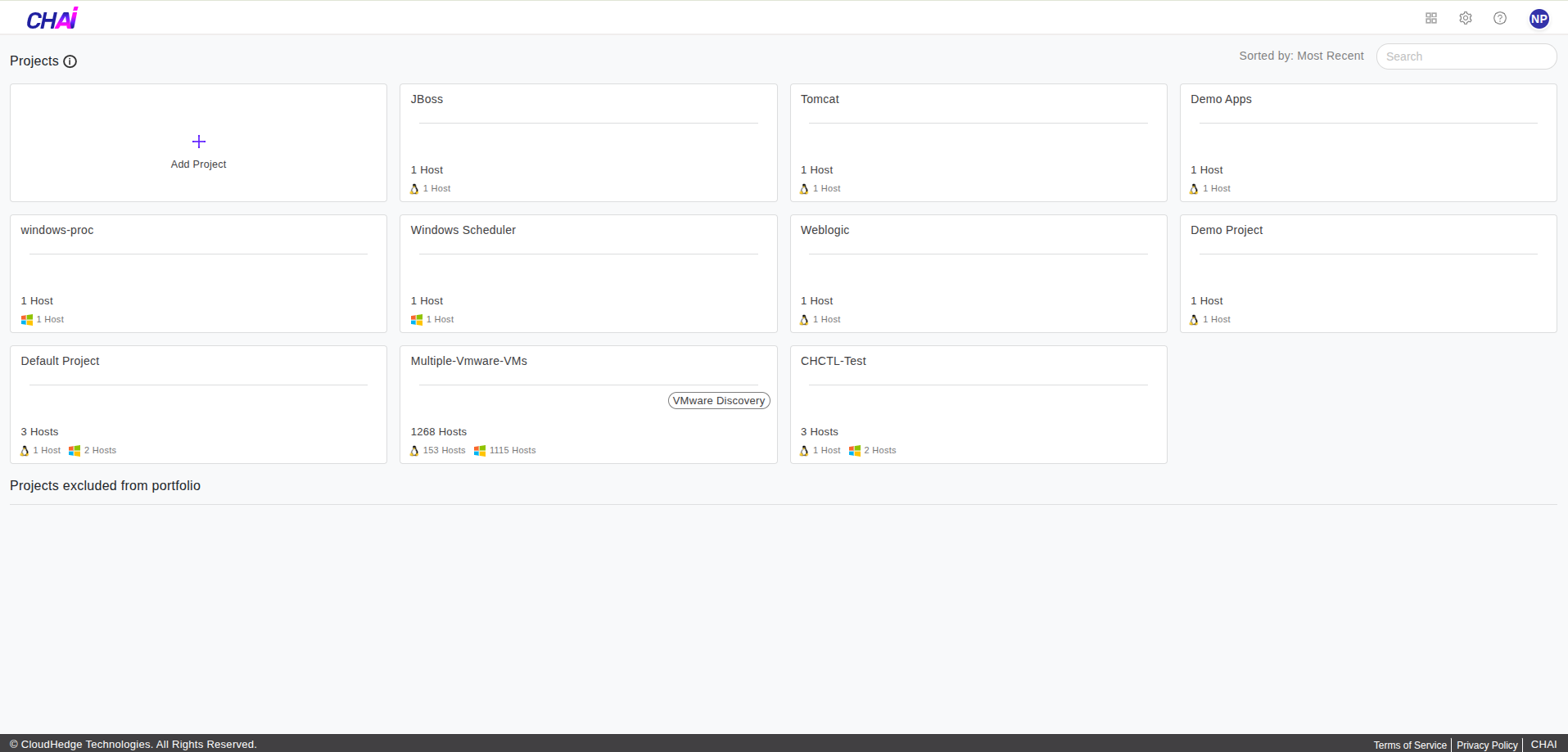
-
Once you click on the Project, click on
Transformin the menu on the left side, as shown in the image below.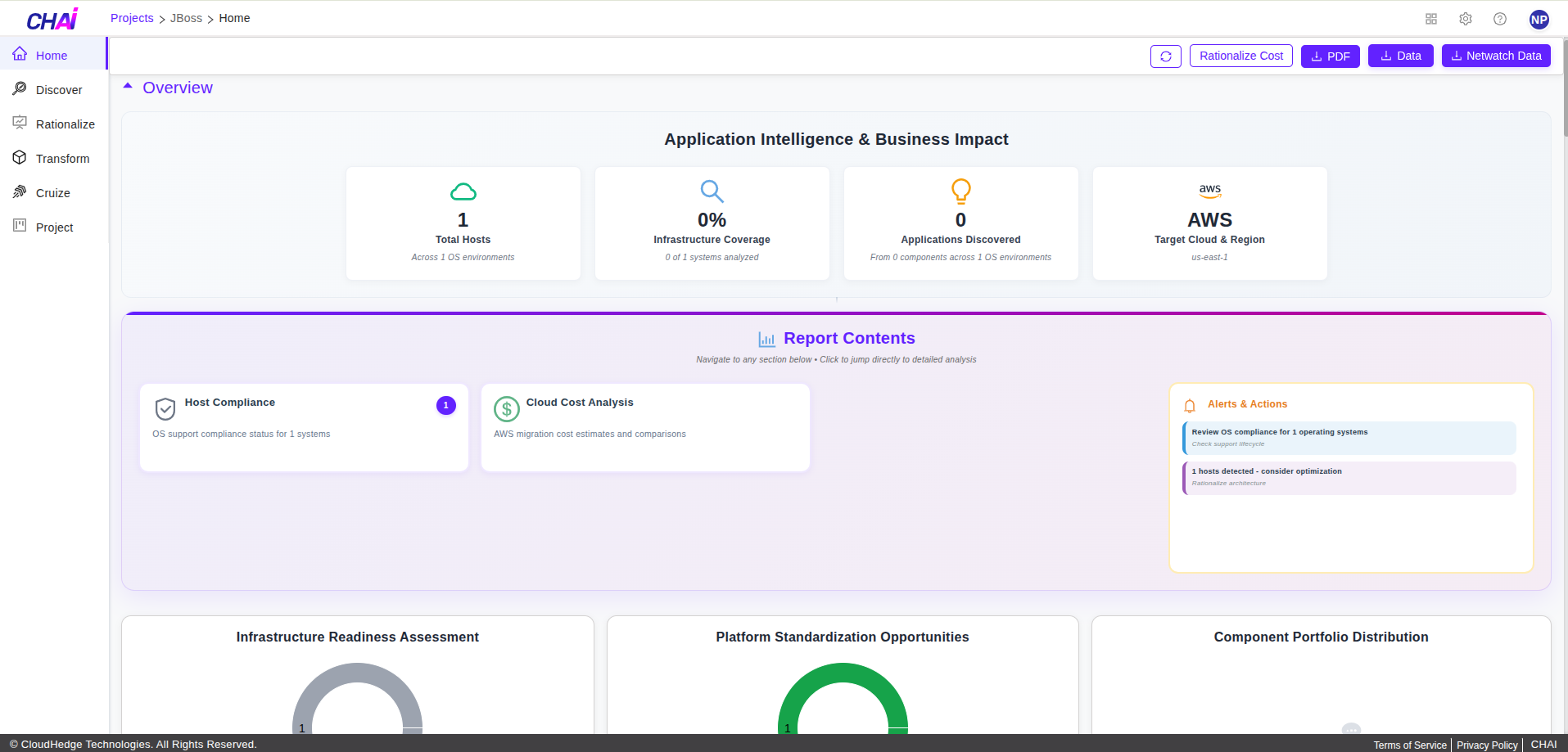
-
Select the Jboss web application you want to transform and click on the
Containerizebutton as shown in the image below.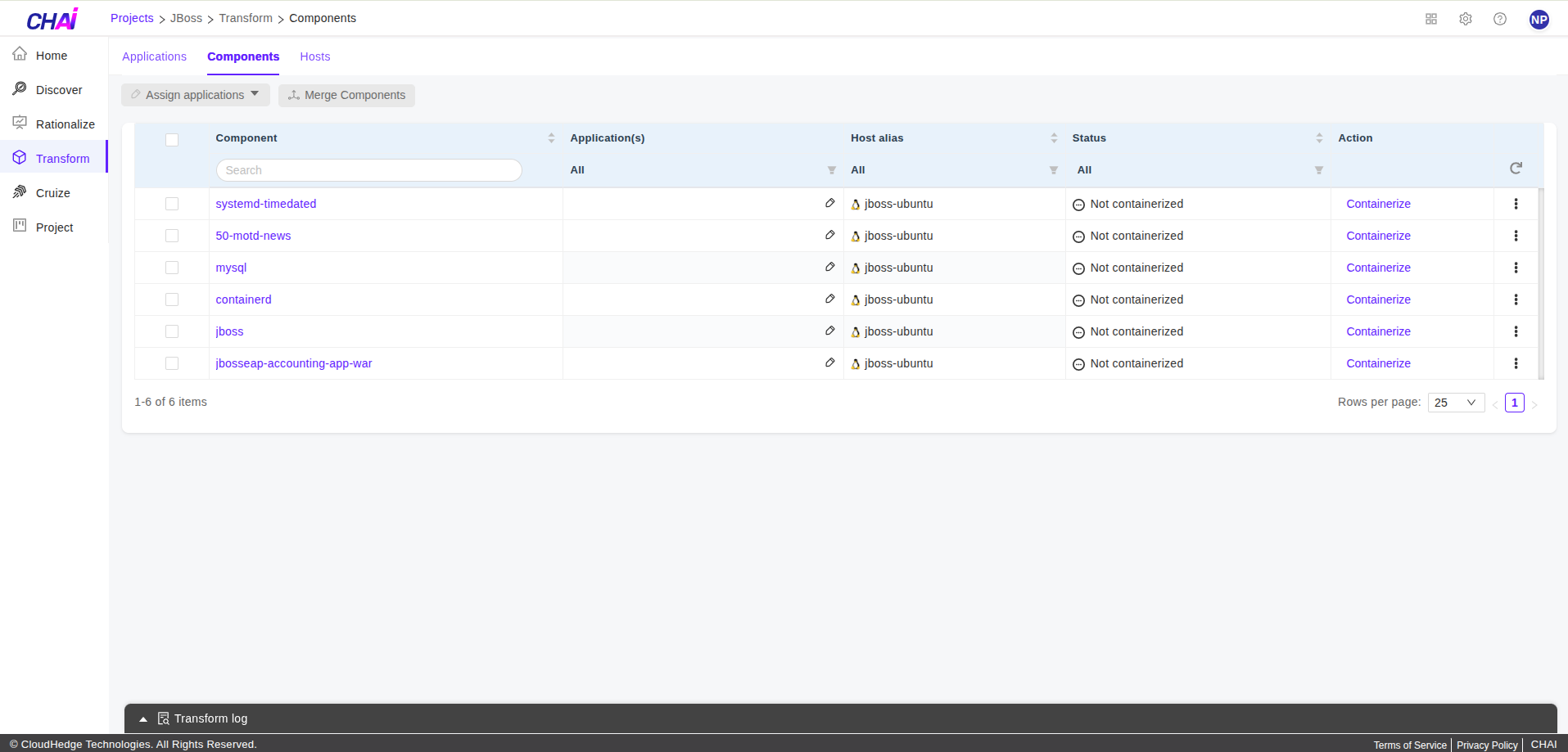
-
Click on Create-Copy Image button to create a new Profile, provide a copy name and click on
Create Copy. -
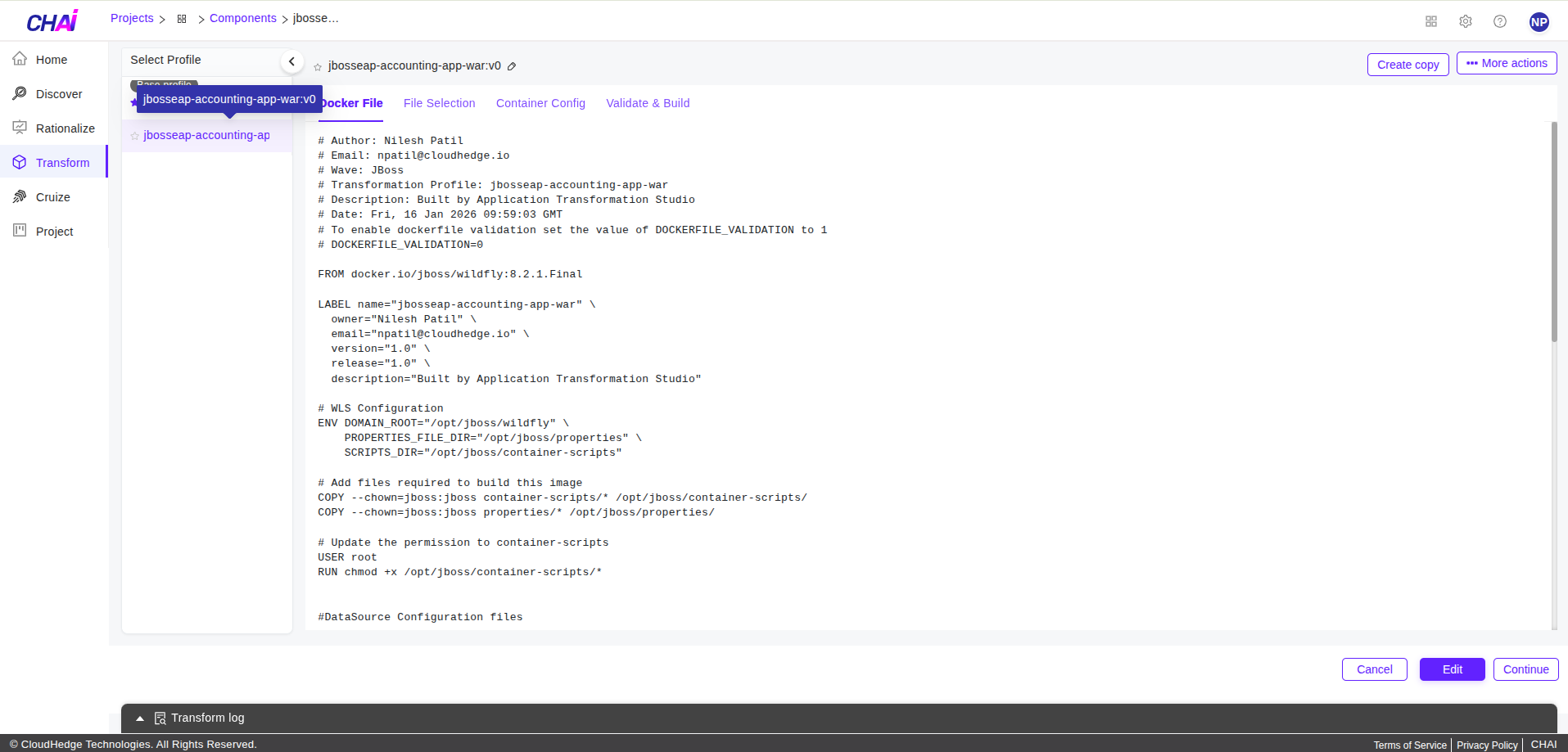
New profile will allow to configure the container parameters before building it. Once users clicks on Create-Copy Image button, it will show dialog box that ask for name of the copy profile. Provide a valid name (containing only alphanumeric characters and hyphen). It will create a profile and will show the page where profile parameters can be customized as shown in the image below.
-
On this page, users can customize the following under the provided tabs :
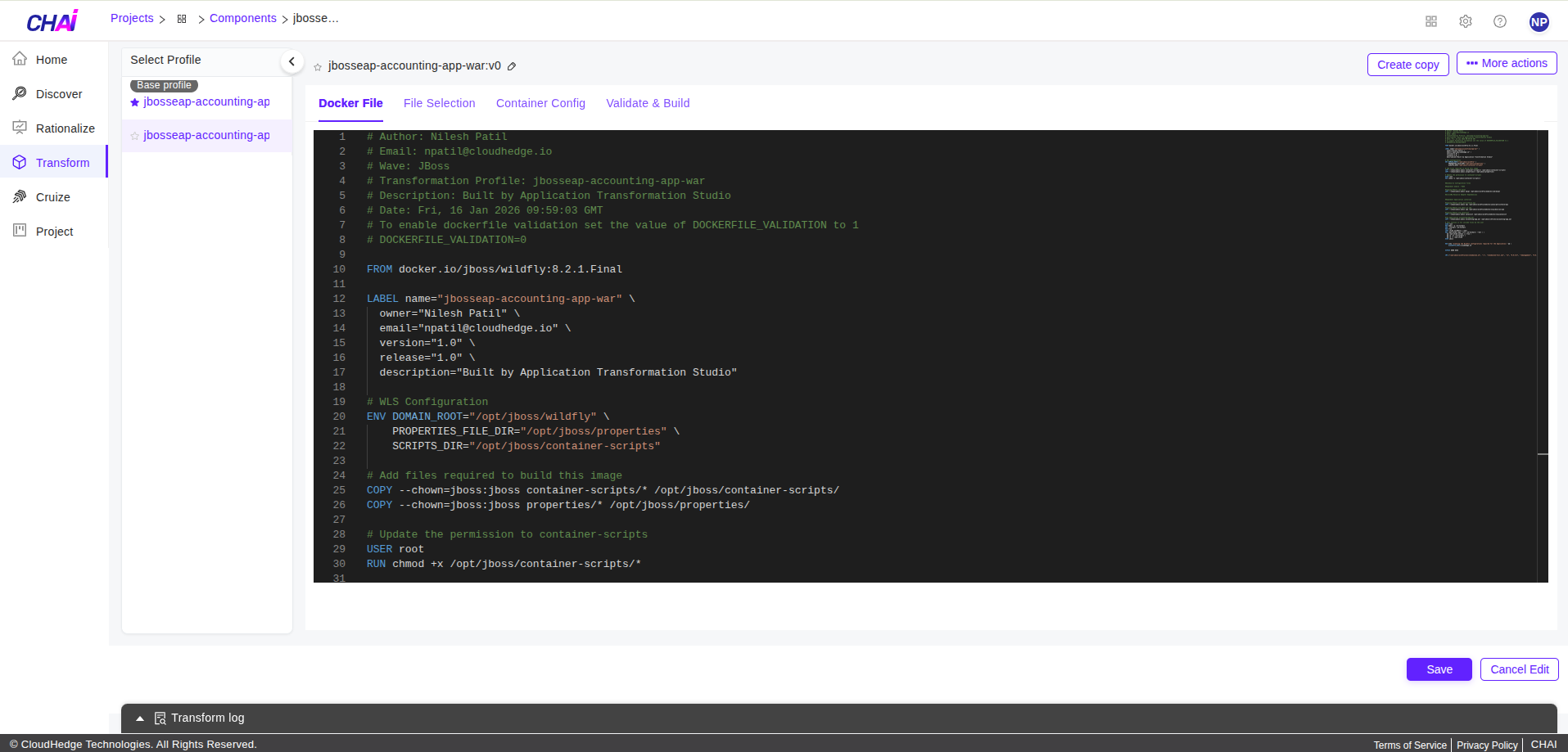
6.1 Edit Dockerfile
This shows the base Docker file used for the creation of the jboss container. The base container image is selected based on the version of jboss Server during discovery. Advanced users, who knows the Docker file contents, can edit this file by clicking the Edit button and Saving their modifications.
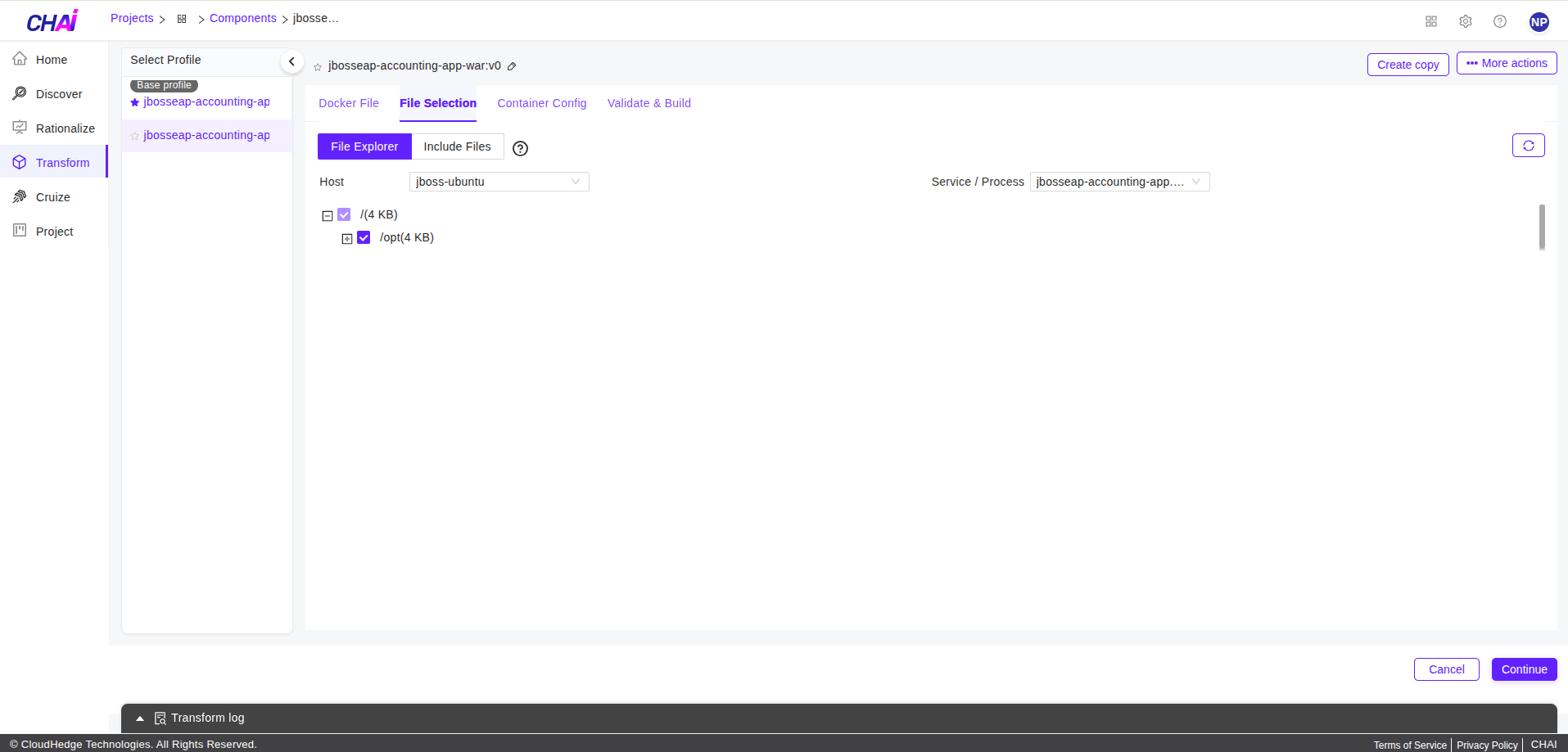
6.2 File Selection
This tab allows users to bundle some of the additional files user may want to put in the container.
6.3 Container Config
The Container Config tab allows users to provide the parameters which are used in building the container. Clicking the container config tab will show the Config Maps. Expanding the Config Maps will show all the configuration files which are considered for building the container. Review the parameters in each of these configuration files. The parameters which needs mandatory user intervention is mentioned as < change-me >. Replace the < change-me > with users parameter value.
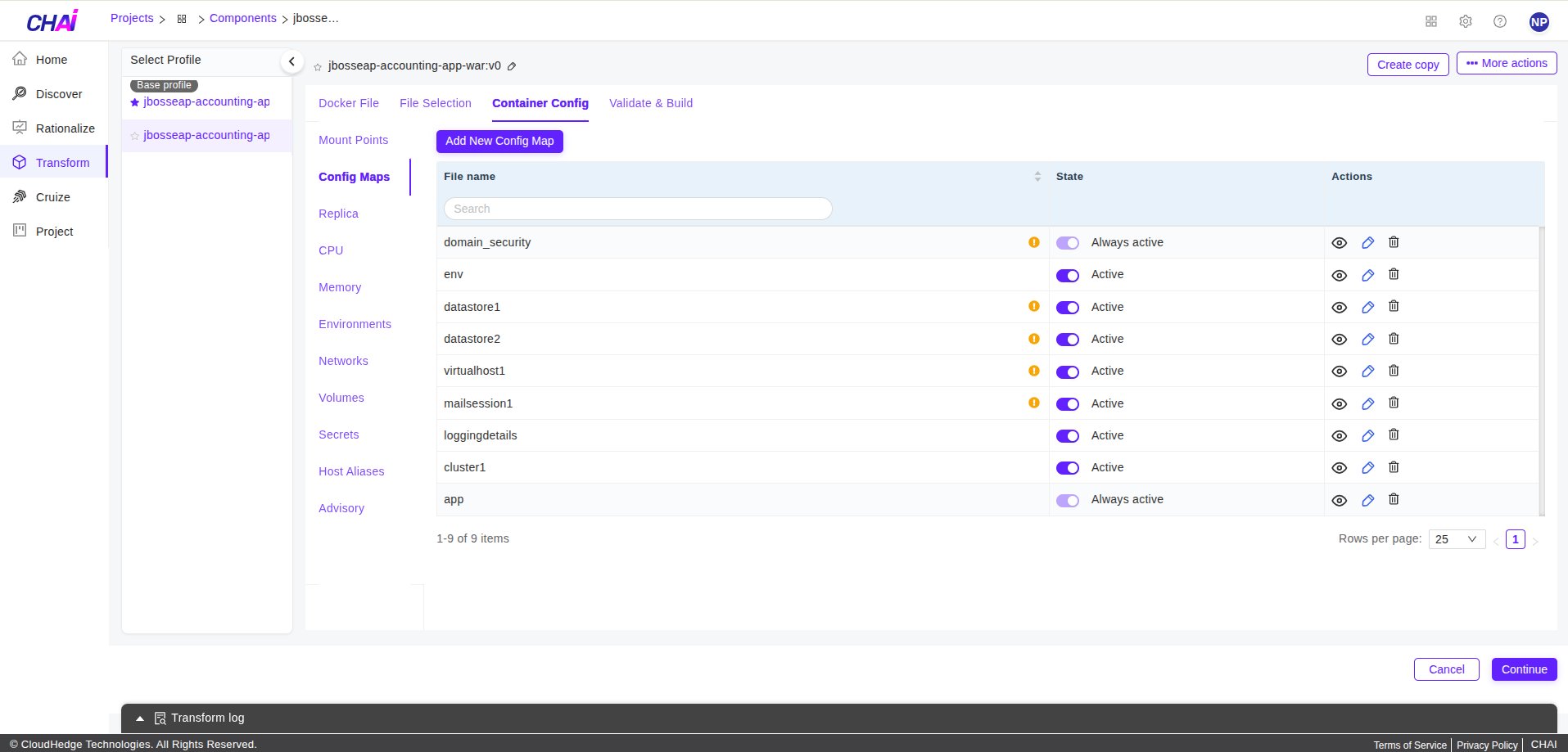
The config maps for SSL will show the details of the SSL configuration that will be applied to the container. This shows the keystore type, keystore file, and the credentials required for the keystore & key passphrase. This configuration can be changed by updating the ssl config map properties and providing the appropriate details as mentioned in it. For more details about the ssl keystore type and jboss configurations, please refer to Oracle jboss documentation here.
After all the parameter files are updated, users can go ahead with next steps to build the container for the application.
-
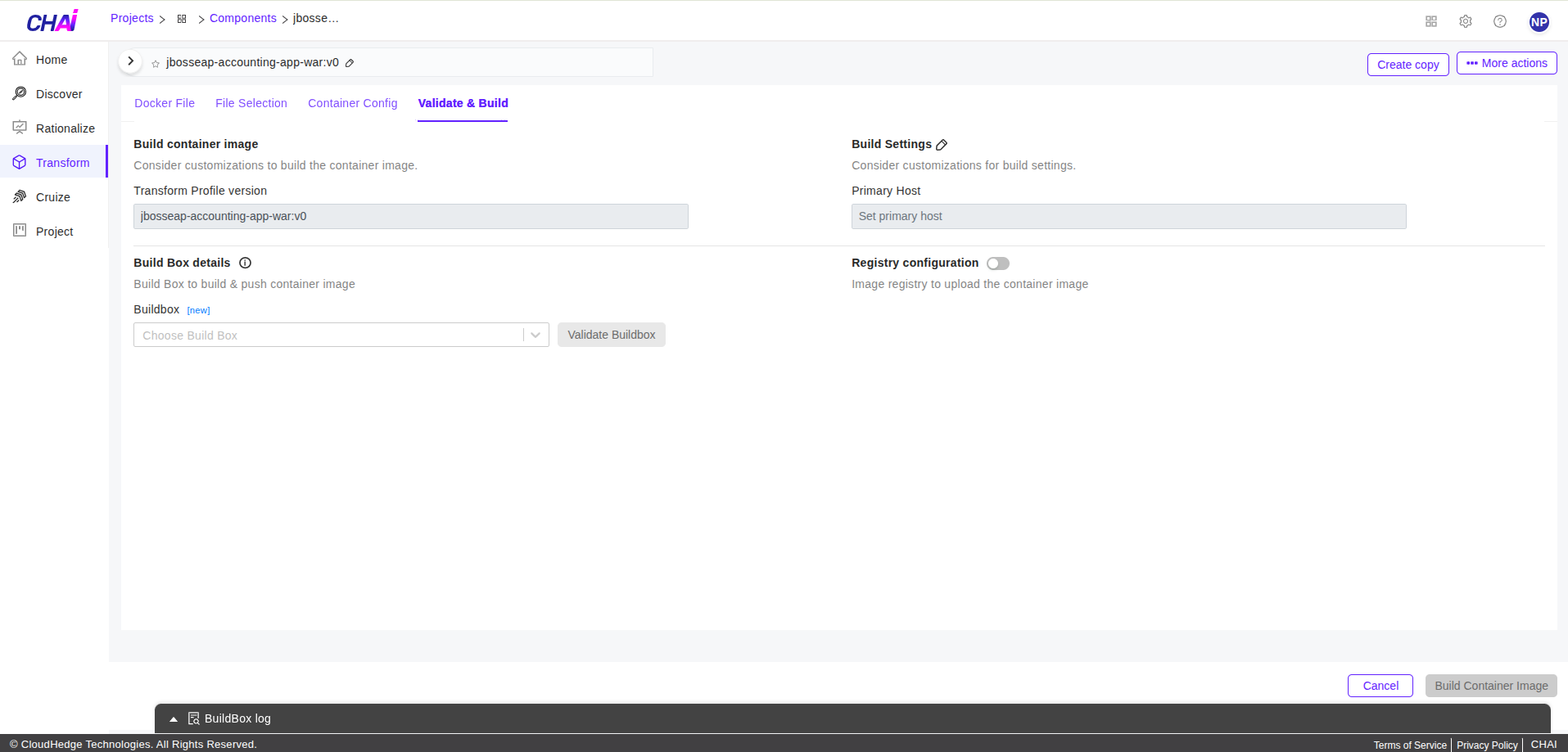
Once users clicks on Validate and Build Image button, it will open a page as shown in the image below.
-
Select the build box to be used for building the image. For reference to adding a build box, for the documentation : click here. Scroll to Buildbox section.
-
Once users enters all the above details, Click on
Build Container Imagebutton as shown in the image below.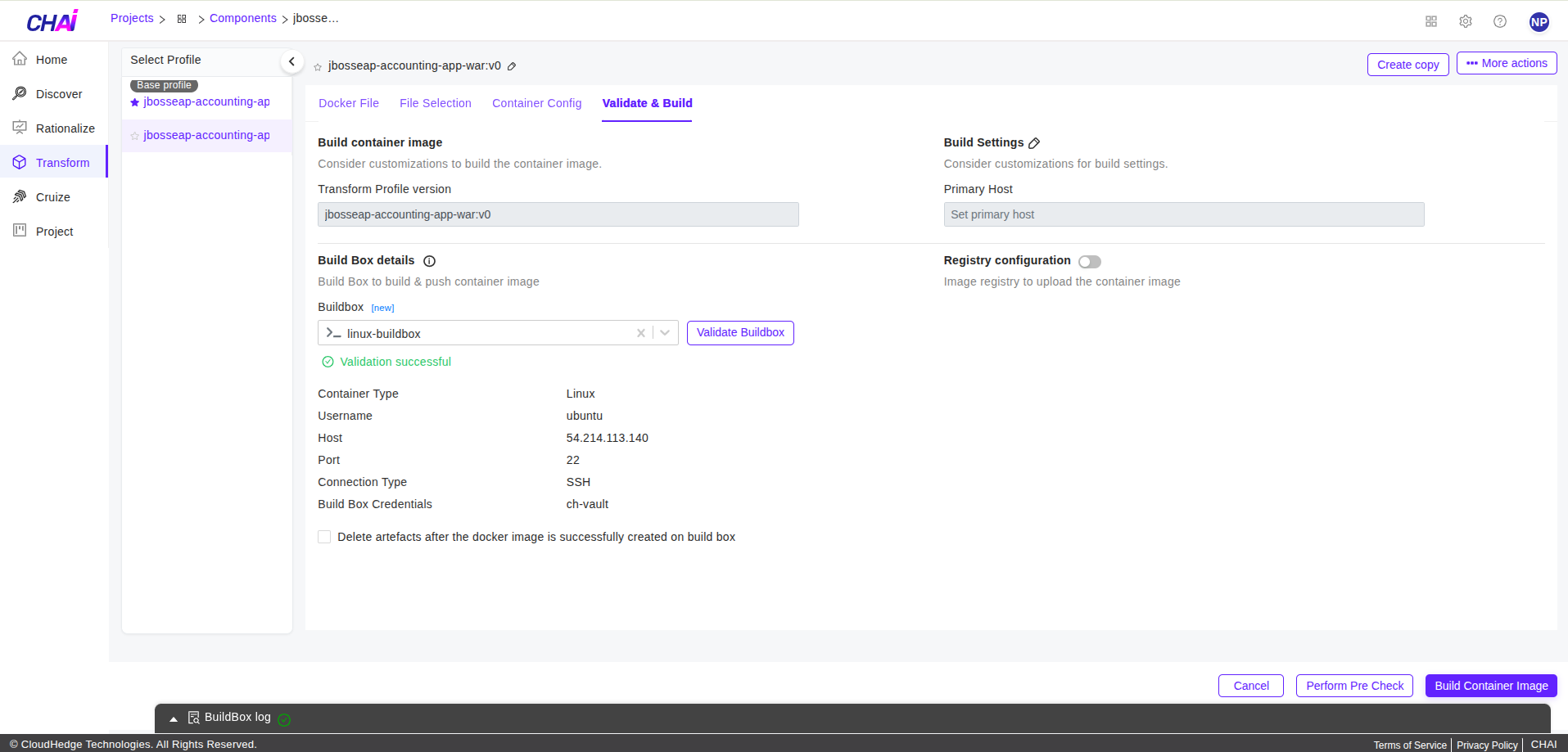
- users will get a success message "Auto Containerization started for ProcessName successfully"
-
While the transform process is running in the background, users can also see the Logs for transformation by selecting the process and clicking on the Logs tab in the bottom.
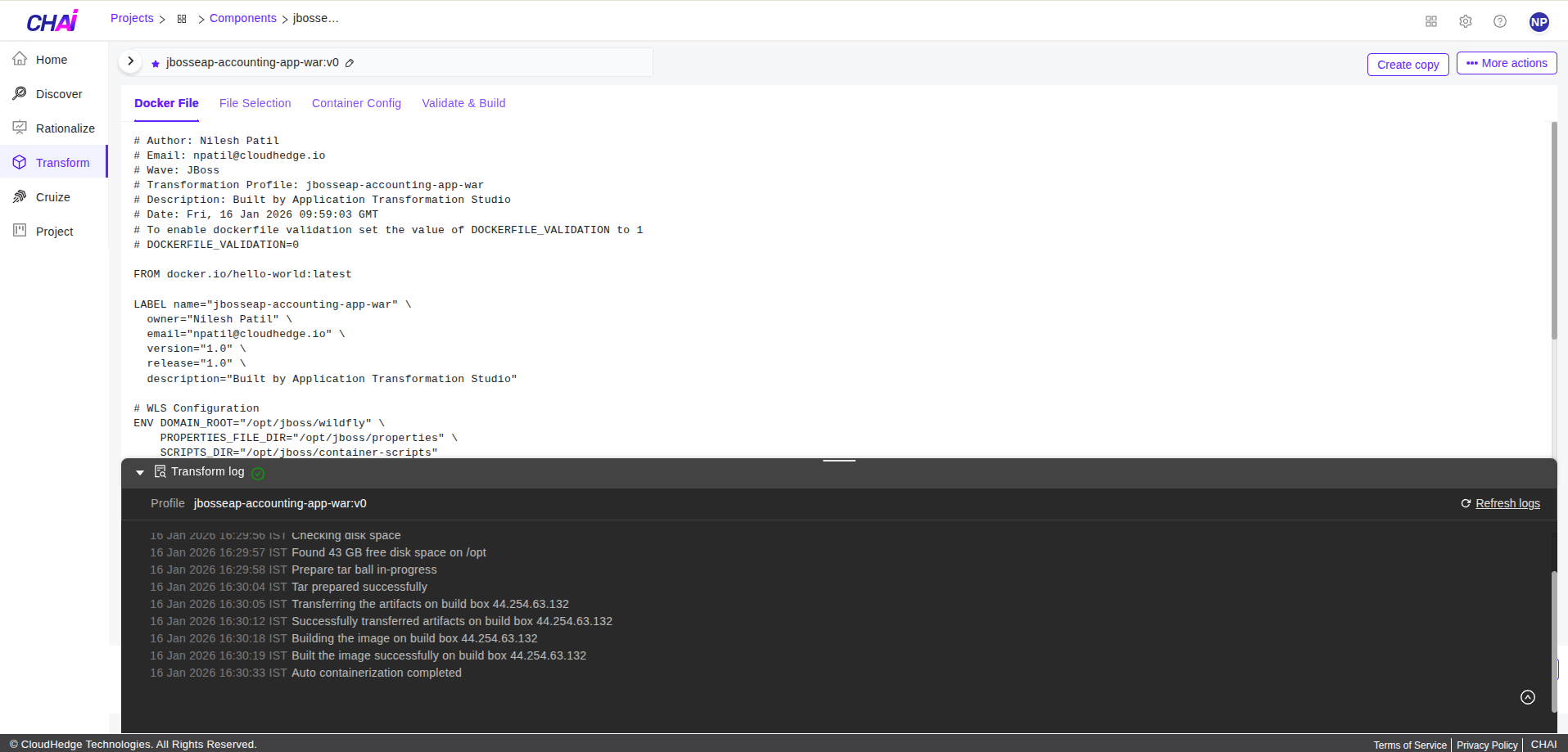
-
User will get a success message after few minutes and the process transformation will be completed.
-
User can verify the Image on the registry which was pushed while Containerizing.