AWS Cost Comparison
AWS Cost Comparison allows you to calculate the cost of hosting the currently discovered hosts in the project in an AWS region of your choice. This is calculated based on the AWS cost sheet for the region and considers the compute, storage, network, business support, and VDI costs (if the discovered host runs a Windows desktop operating system).
Prerequisite
In order to use this feature, the "Target Cloud" for the project should be "AWS", and it calculates the cost for the region set in "Preferred region".
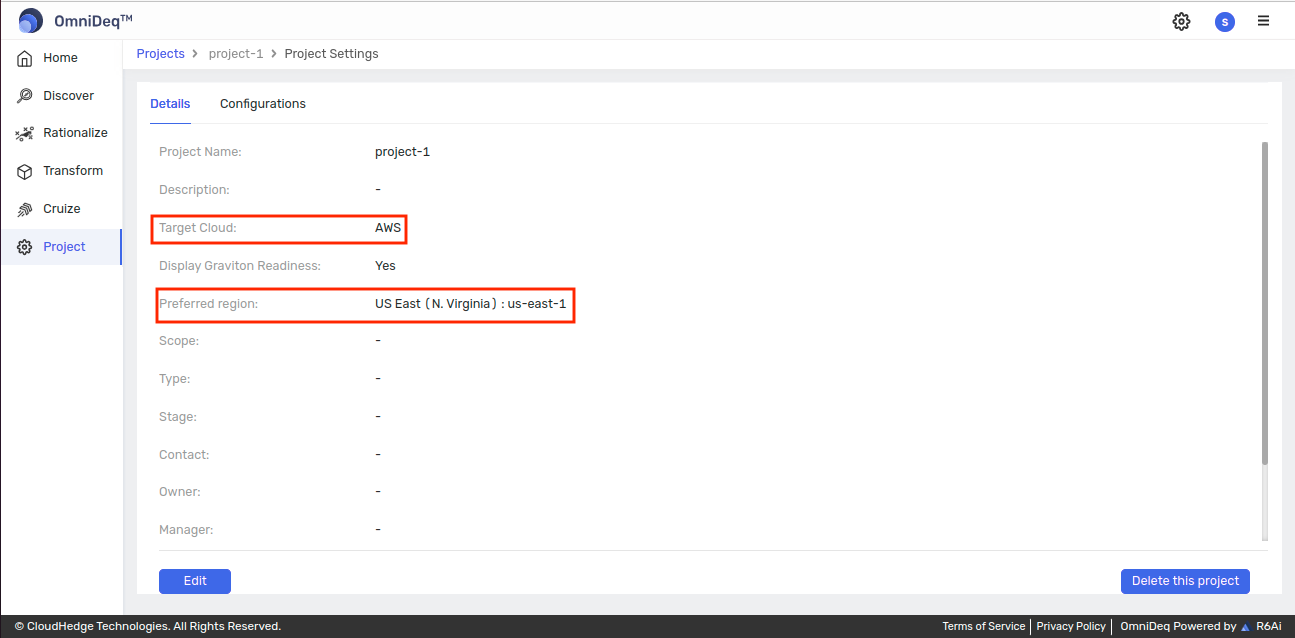
View AWS Cost Comparison
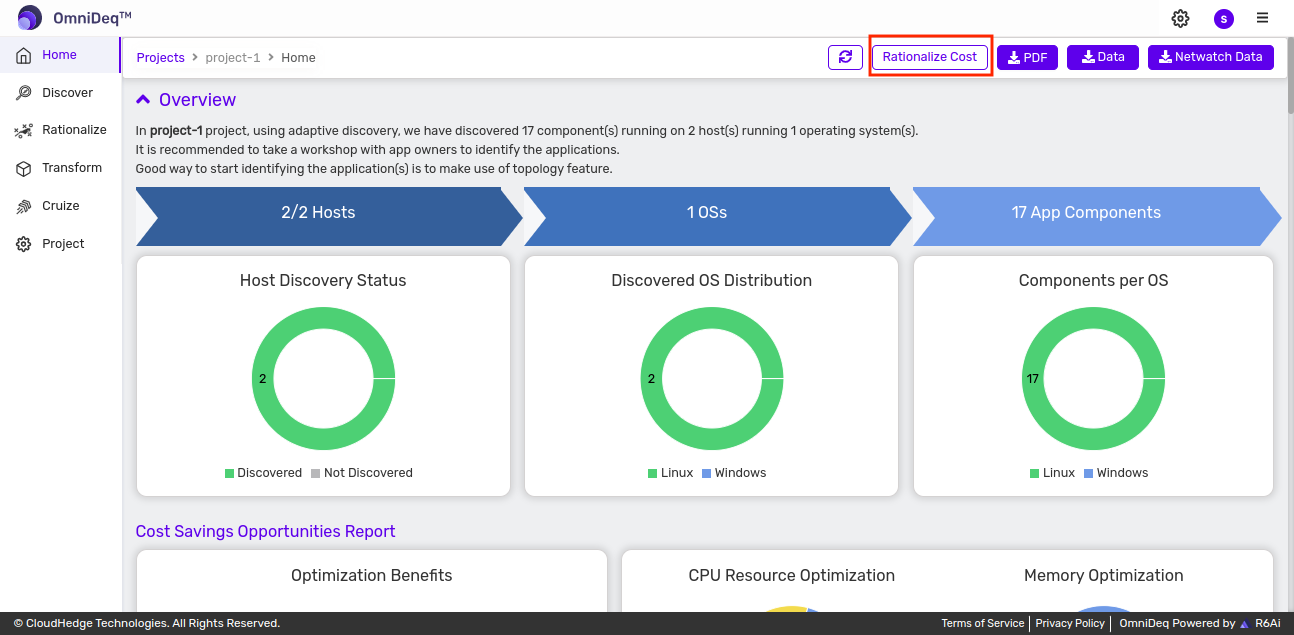
You can navigate to the AWS Cost Comparison page by clicking Rationalize Cost in the DART page as shown below:
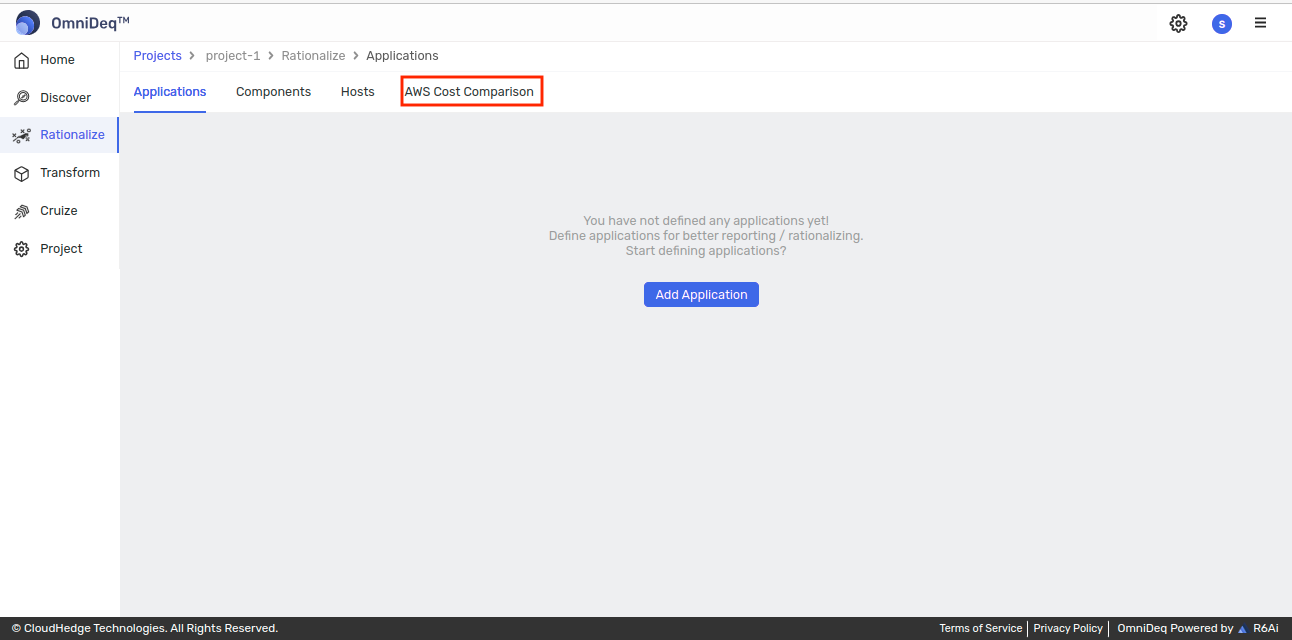
You can also navigate to the AWS Cost Comparison page by clicking the AWS Cost Comparison tab in the Rationalize page as shown below:
Understanding and Using AWS Cost Comparison
Cost Calculation
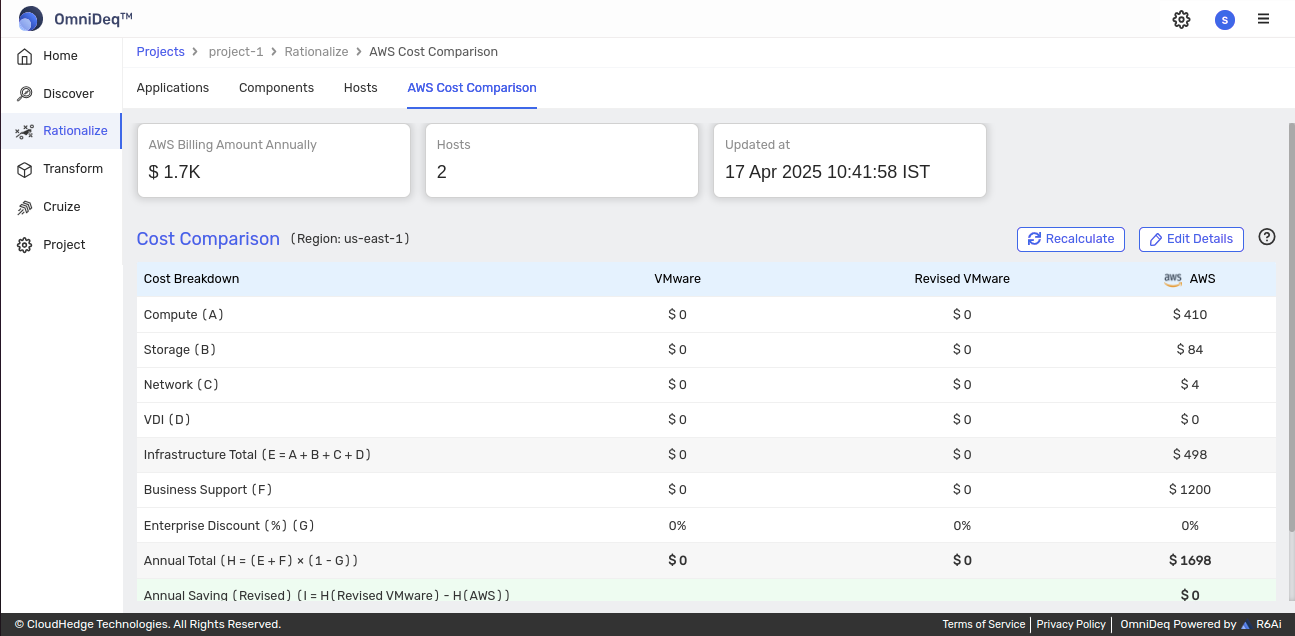
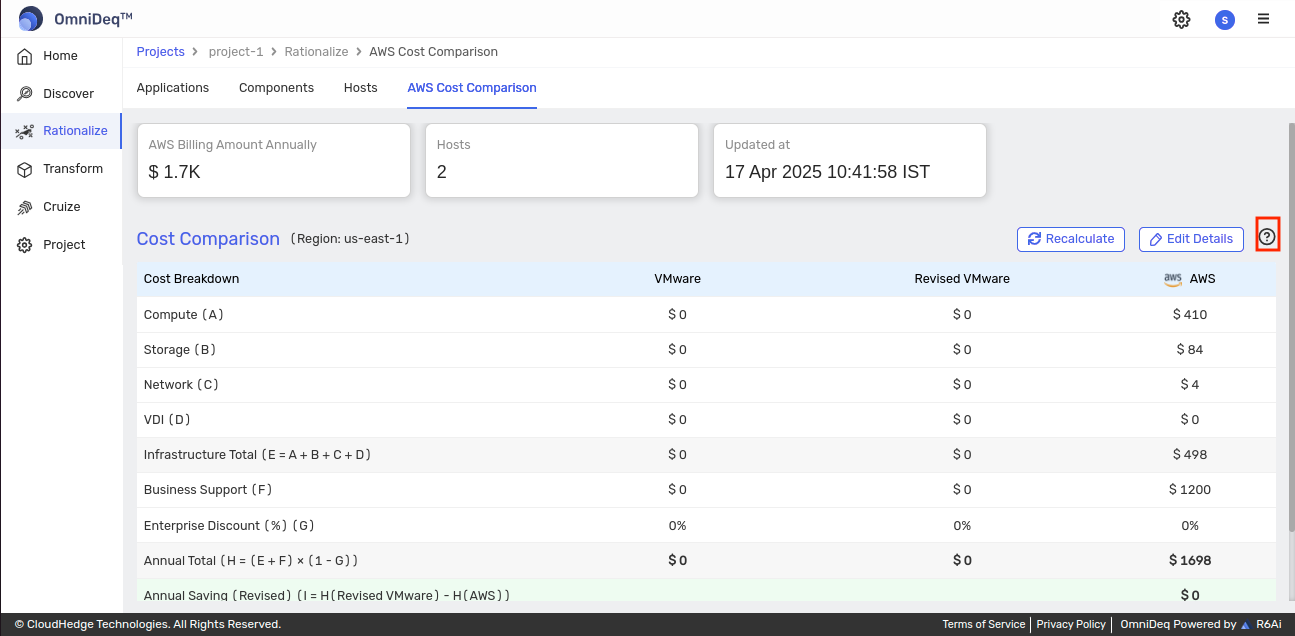
Once the hosts have been added to the project and discovered, or RVTools data imported into the project, the cost for migrating the workloads to your desired AWS region is calculated based on the discovered hosts' CPU, memory, operating system, storage, etc., using the specified region's cost sheet. The calculated cost is displayed in the AWS Cost Comparison page as shown below:
View Estimation Approach
You can view the approach used to calculate the cost by clicking on the ? icon as shown below:
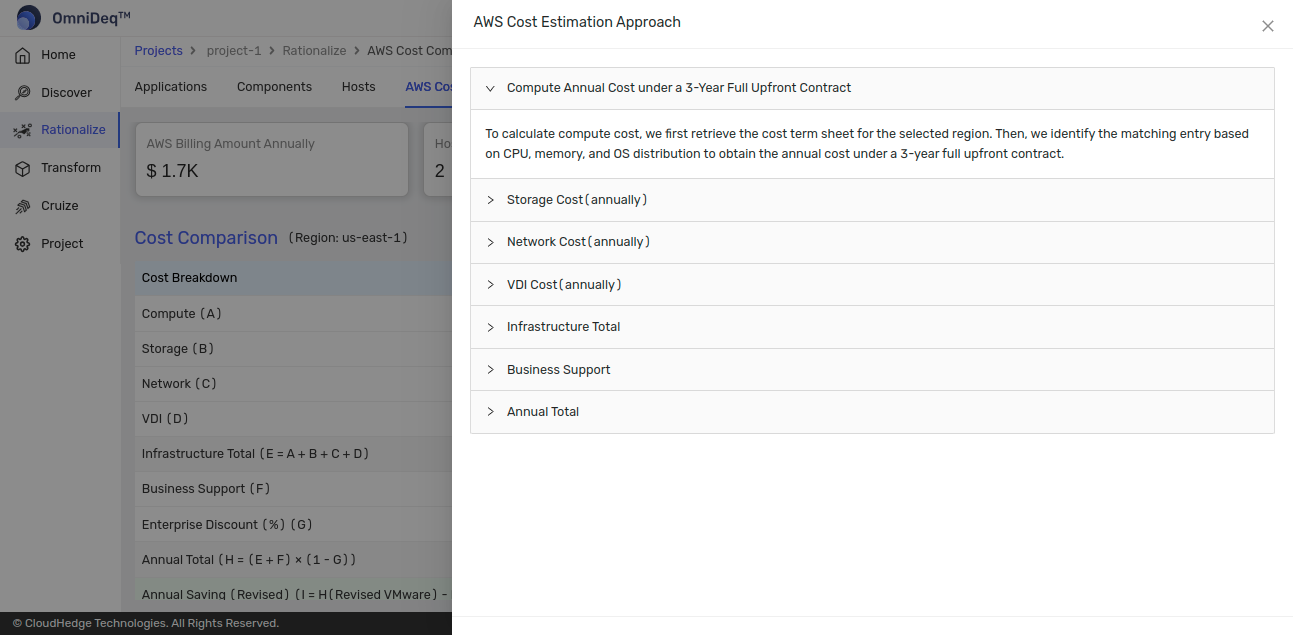
This will open the following page where you can view the approach. You can expand each section to understand the details:
Edit Cost Details
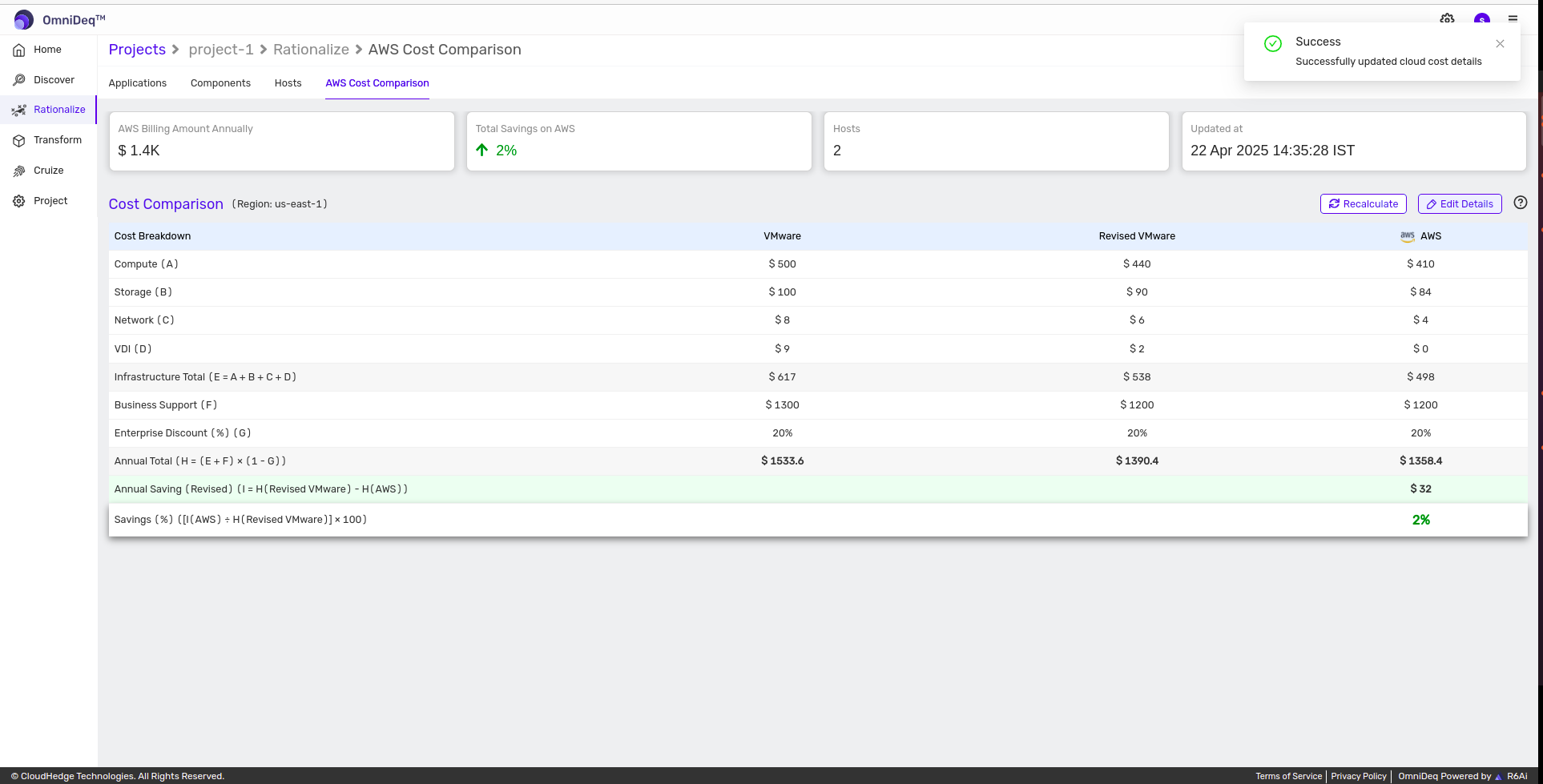
You can use the Edit Details feature to edit the costs calculated by CHAI™, and to input the VMware costs (pre-Broadcom acquisition) and the revised VMware costs (post-Broadcom acquisition). The revised VMware cost is used to calculate the savings of moving from the existing VMware environment to AWS.
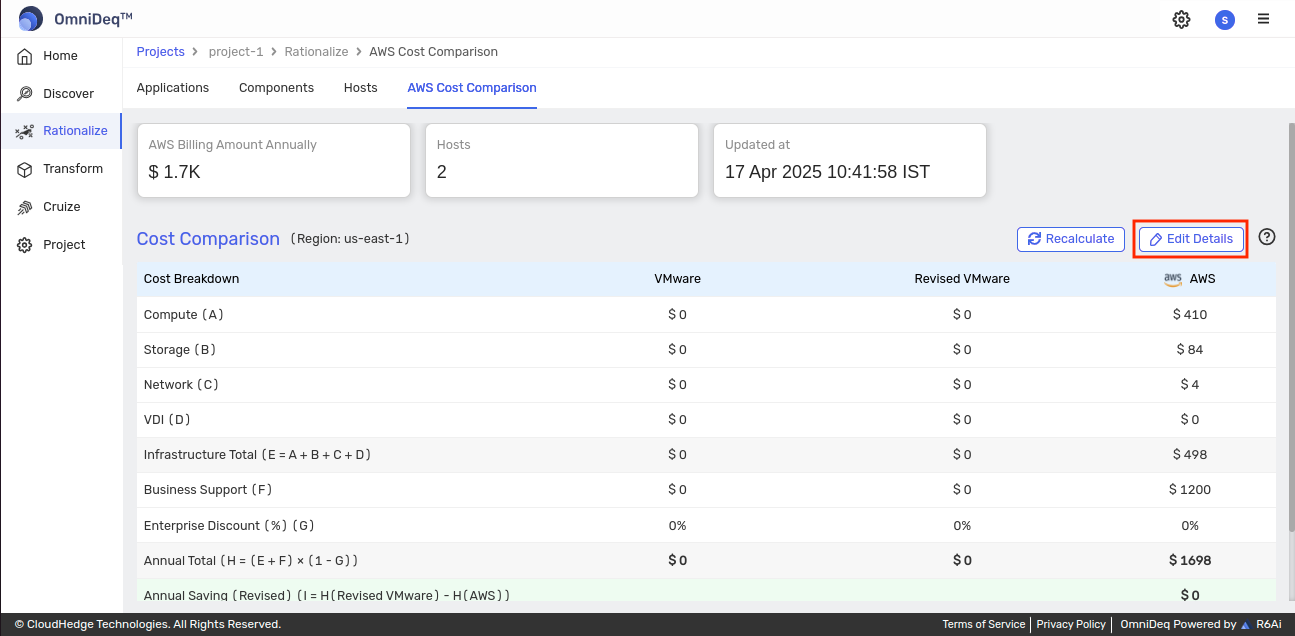
Click Edit Details as shown in the image below. That will take you to the screen where you can enter the various costs as shown in the second image below:
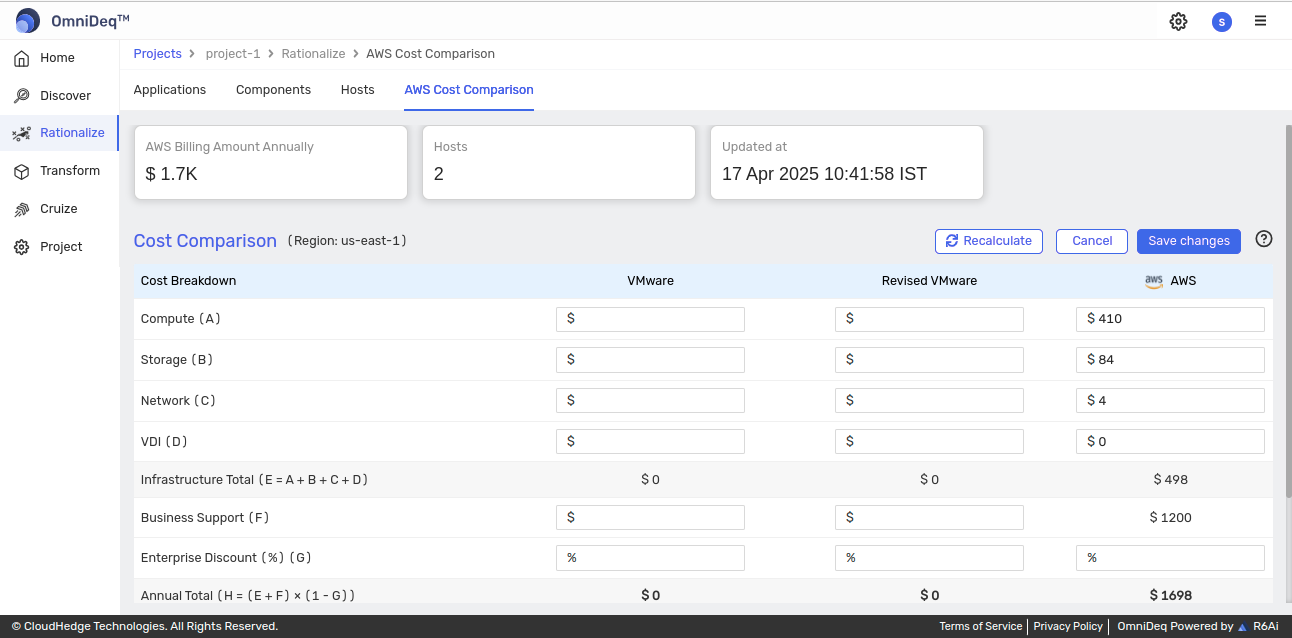
You can enter the different costs and once updated, click the Save changes button.
The changes will get saved and you will receive a notification:
Cost Tiles
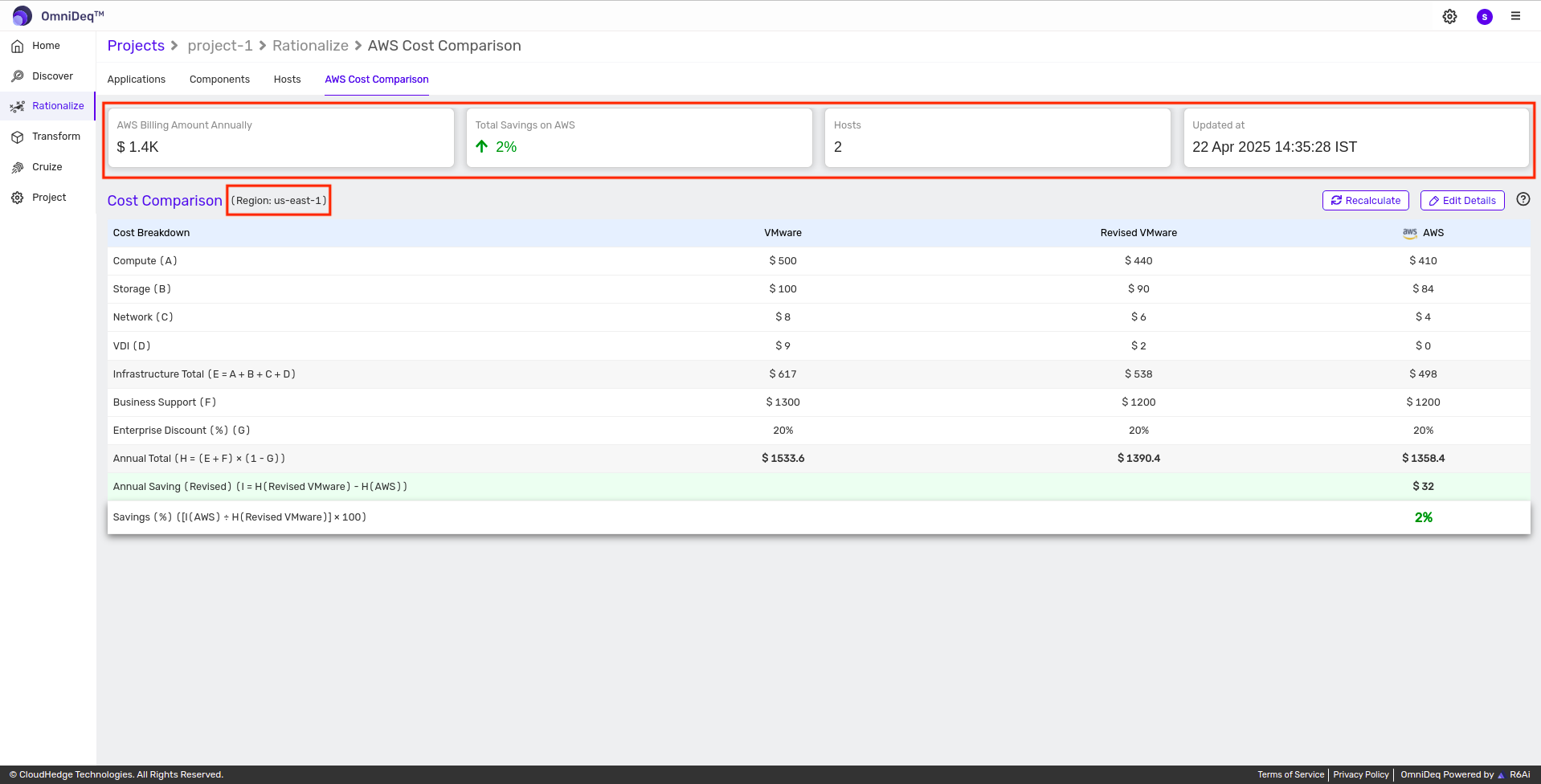
You will see tiles highlighting the total AWS annual costs, savings, number of hosts, the date it was updated, and the region this is calculated for as shown below:
Override Instance Type
CHAI™ identifies the instance types to use in AWS for the different hosts based on the CPU, memory, etc. These are also used to calculate the costs. You can override the instance type and choose a different one. This will lead to a change in the cost calculated.
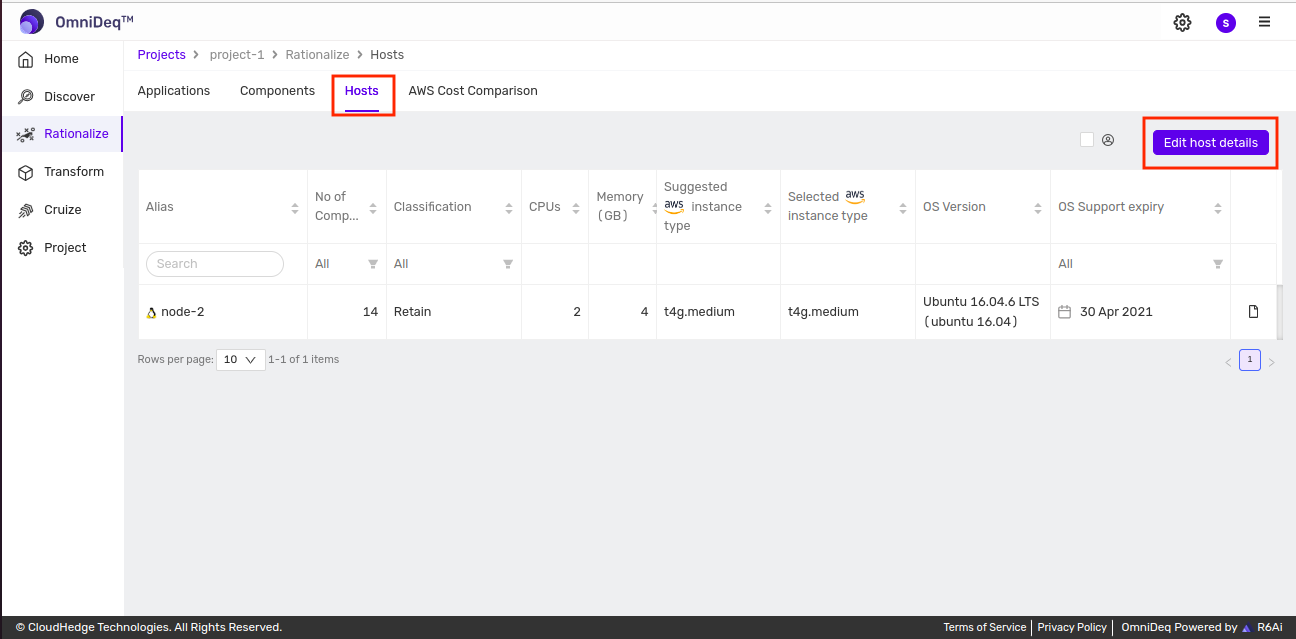
You can change the instance type by clicking the Host tab and clicking the Edit host details button:
Select the desired instance type from the Selected aws instance type column dropdown:
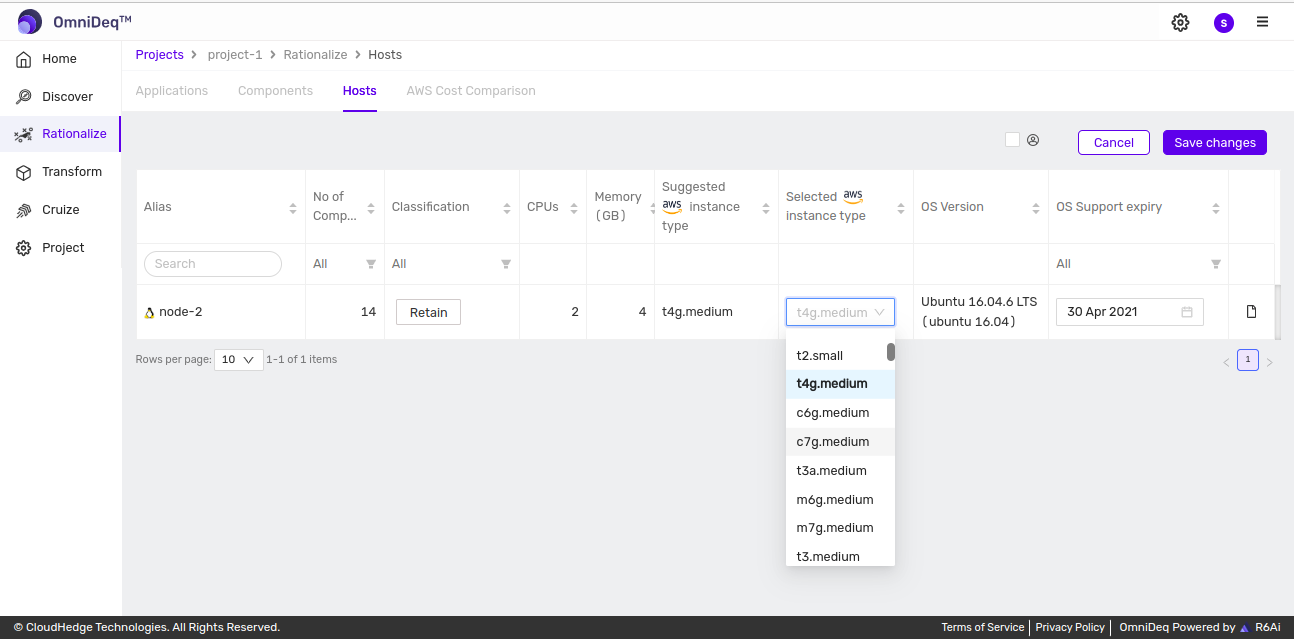
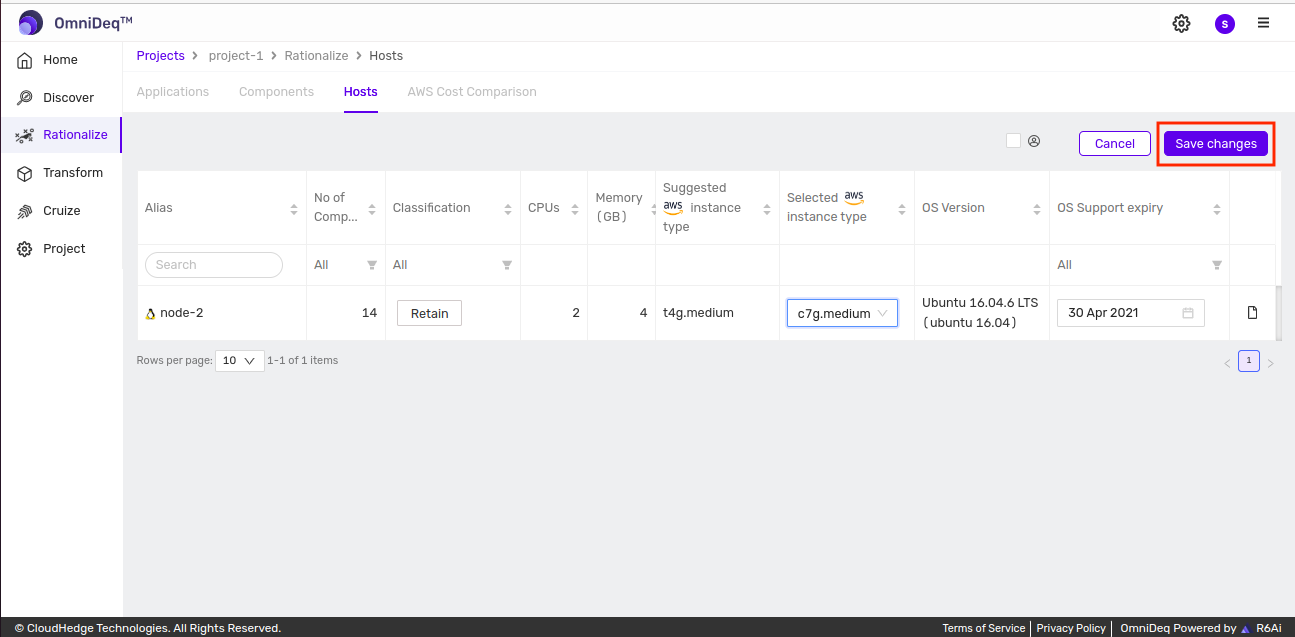
Once selected, click Save changes:
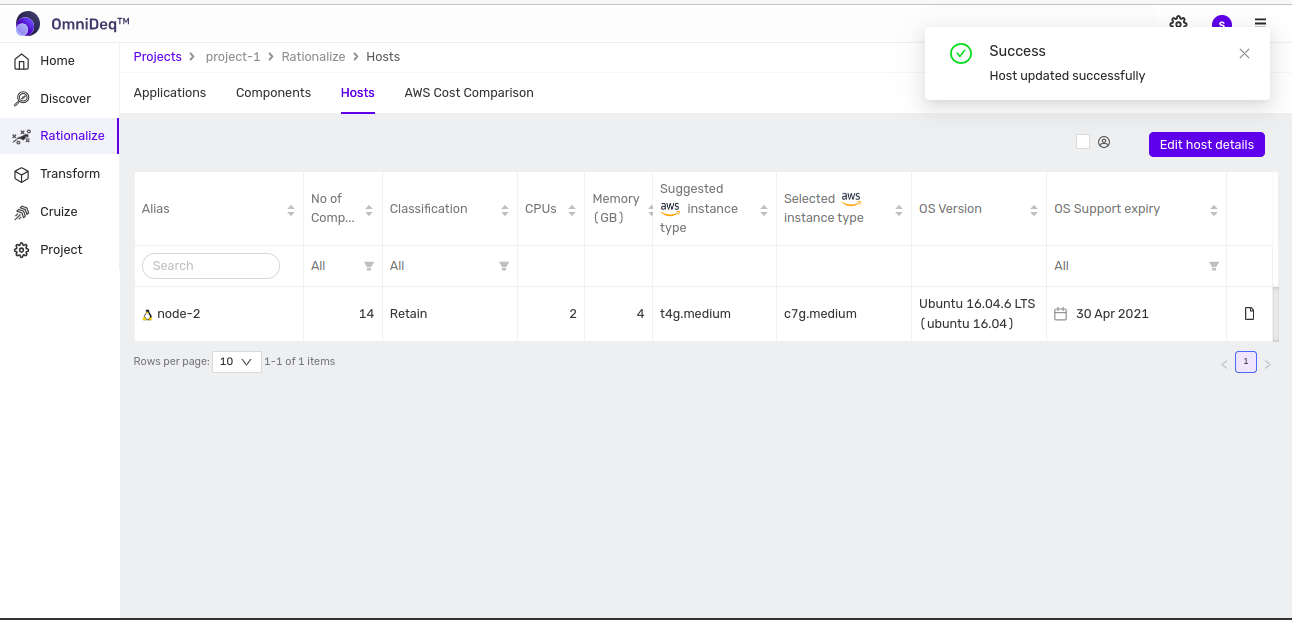
The changes made are saved:
Navigate back to the AWS Cost Comparison tab to view the updated AWS cost.
Change AWS Region
If you want to check the costs for a different AWS region, you can edit the project properties, change the region to the one you are interested in, and visit the AWS Cost Comparison page to view the costs in that region.