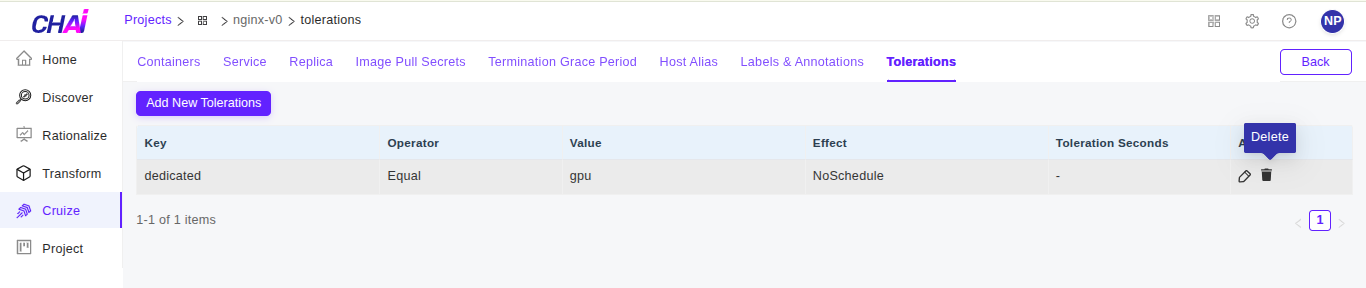
Tolerations
-
After logging into CHAI™, click on the Project where you want to add Tolerations and then click on
Cruize.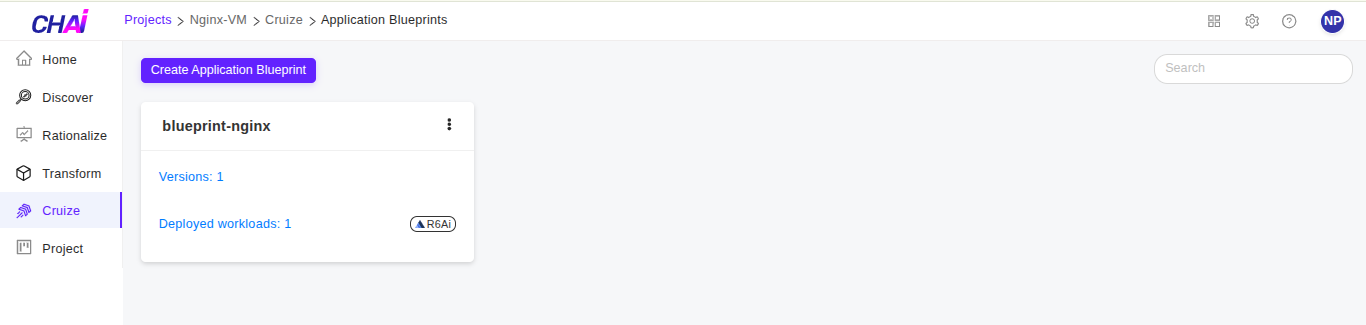
-
Click on blueprint version count on blueprint card. After clicking to count, blueprint versions page will be disaplyed which contains list of blueprint versions.
-
Go to Deployments tab and click on
Edit deployment definitionfrom Action column of any deployment.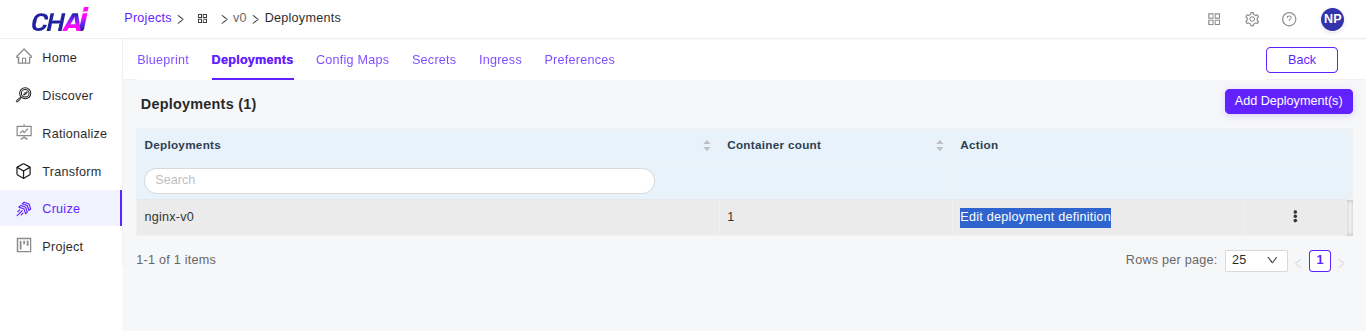
-
Then deployment definition page will be opened, now go to
Tolerationstab as shown in the below image.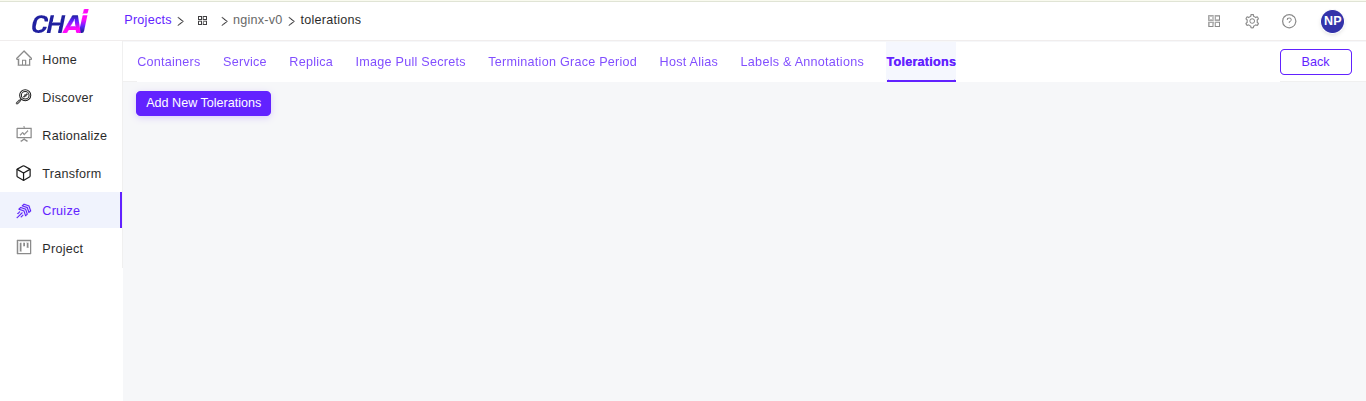
Add Tolerations
- Tolerations are empty by default. Click on
Add New Tolerationsbutton to add tolerations. -
After clicking on the button, a page will be opened to add the tolerations details.
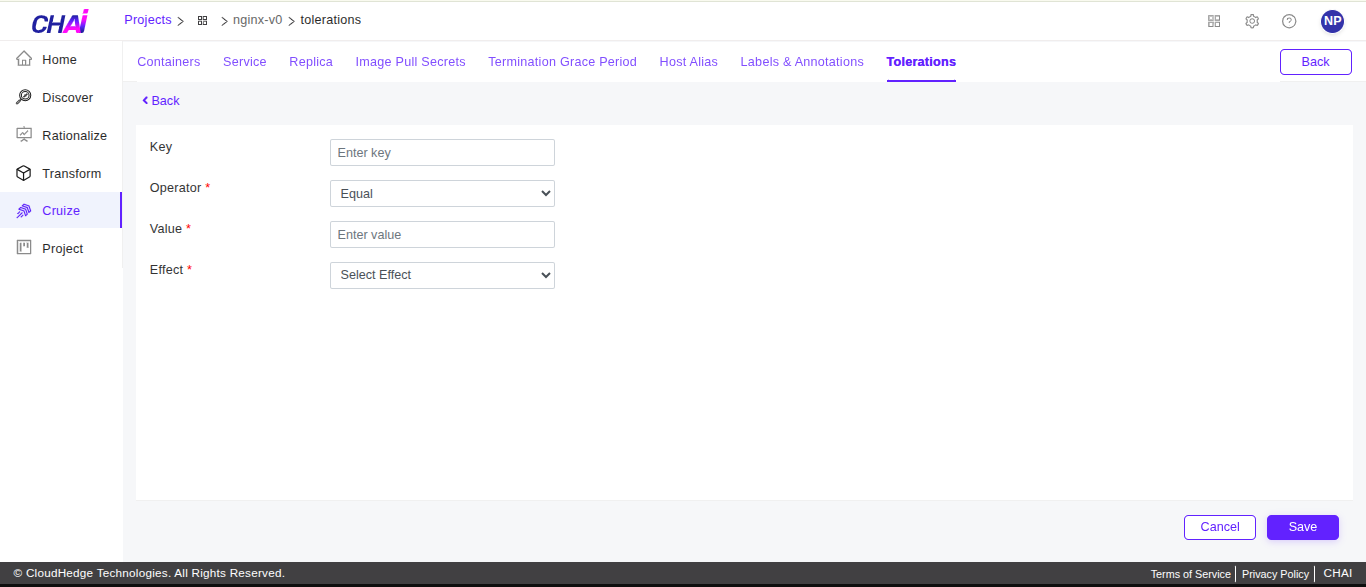
-
Fill up the details.
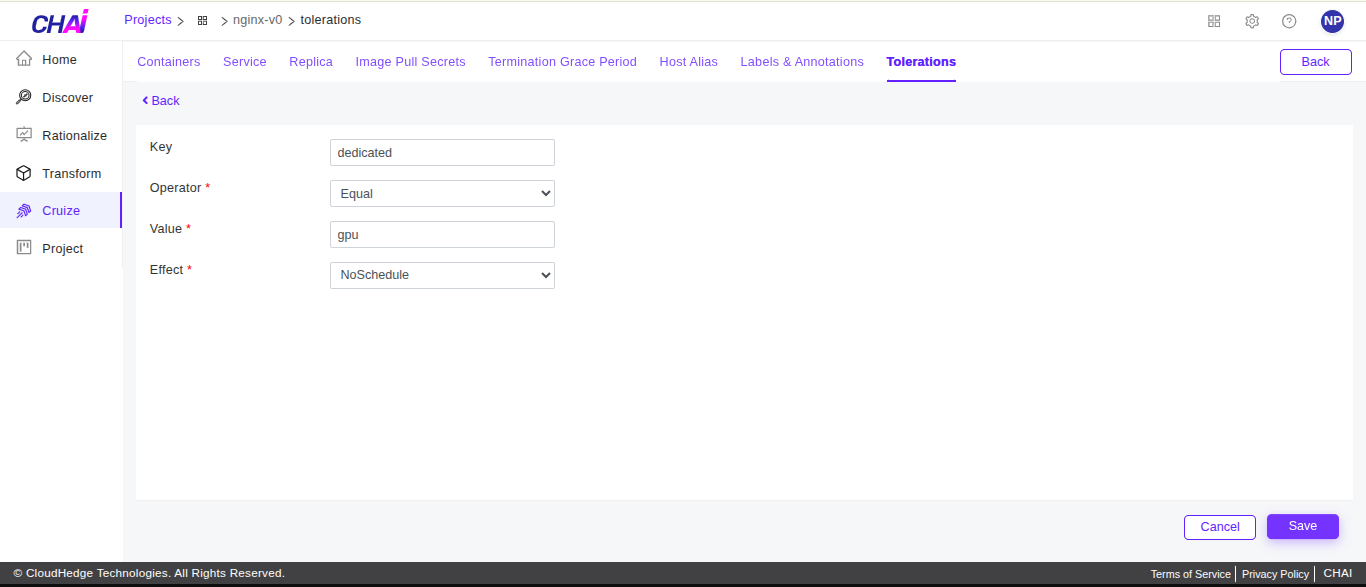
-
Once all details filled, click on
Savebutton. A pop-up of confirmation message will be displayed as shown in the image below.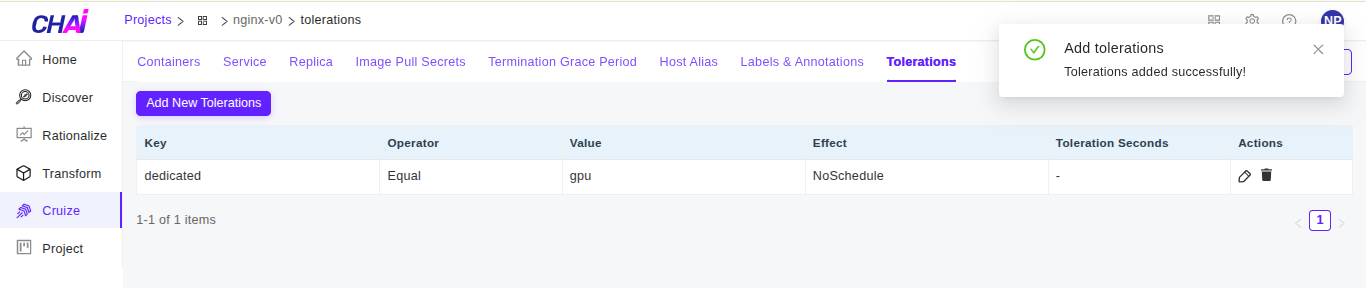
Edit tolerations
-
Click on edit(pencil) icon to edit the tolerations as shown in below image.
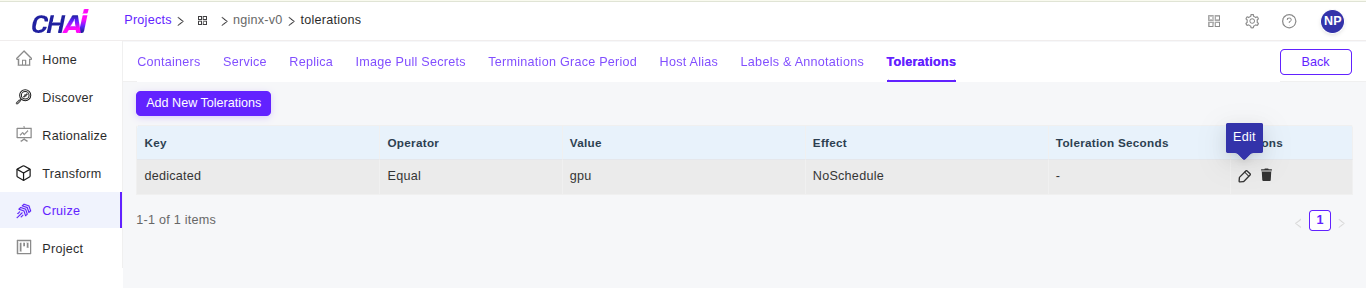
Delete tolerations
-
Click on delete icon to delete the tolerations as shown in below image.