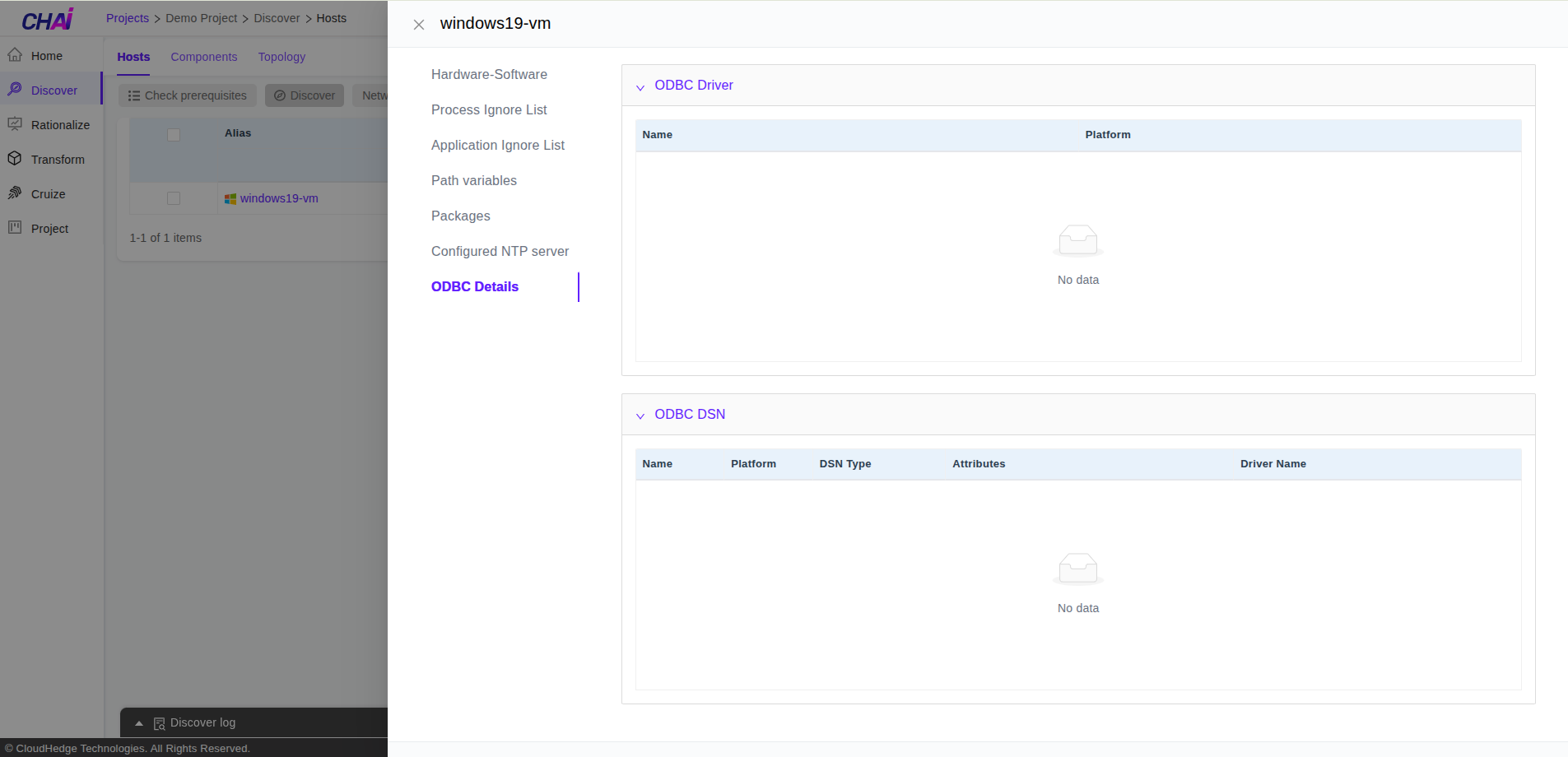
Windows Discovered Host Information
Once the discovery is completed and clicking on the node alias shows the following details of the host:
- Hardware-Software Information
- Process Ignore List
- Application Ignore List
- Path Variables
- Packages List
- Configured NTP Servers
- ODBC Details
Note:
By default, information regarding hardware and software of host will be displayed and to see path variables, packages, and configured NTP Servers, click on respective tabs.
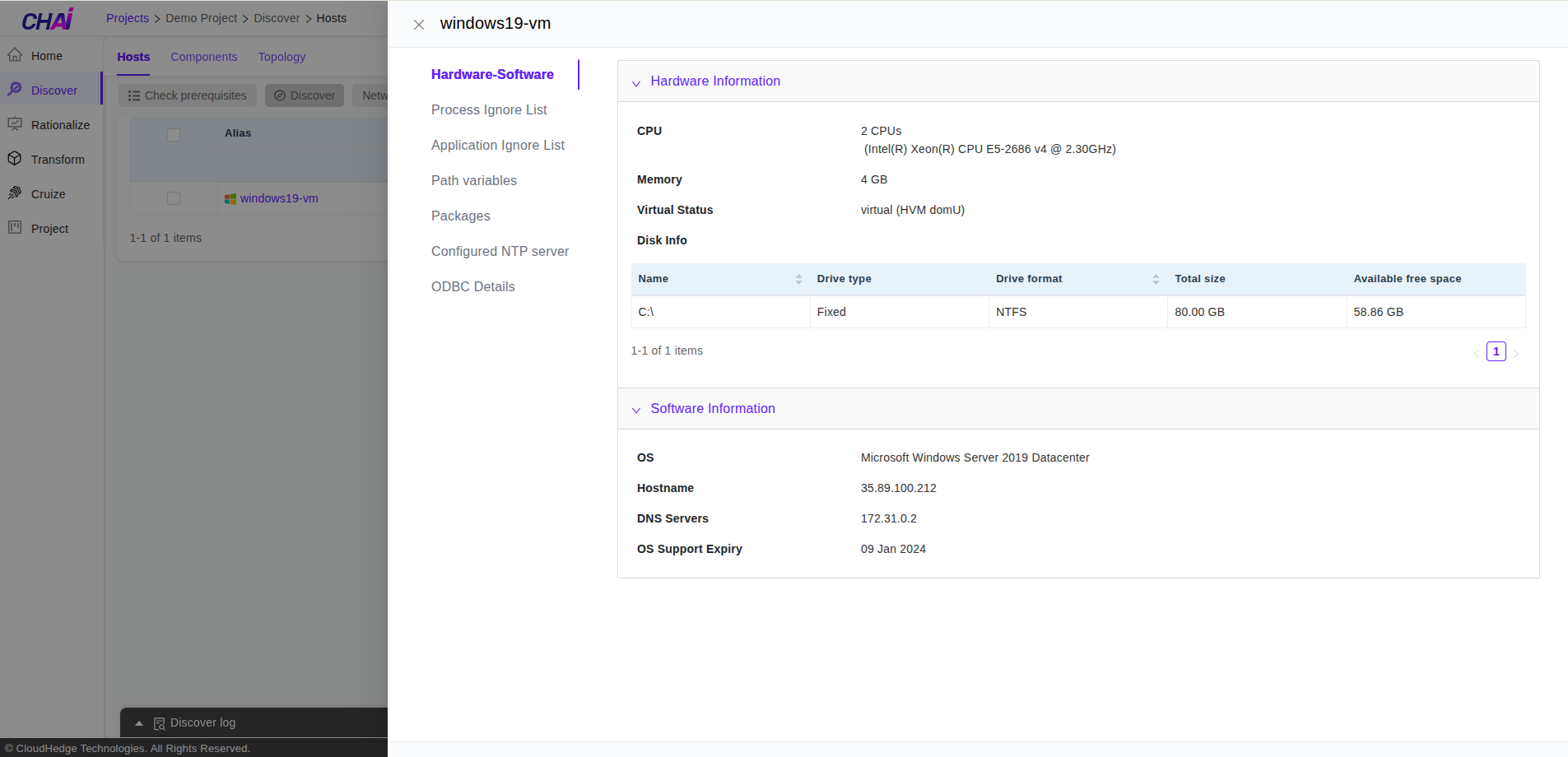
Hardware and Software Information
As shown in the image below, information of hardware i.e., CPUs, memory, disk information as well as software information like operating system and DNS servers will be displayed.
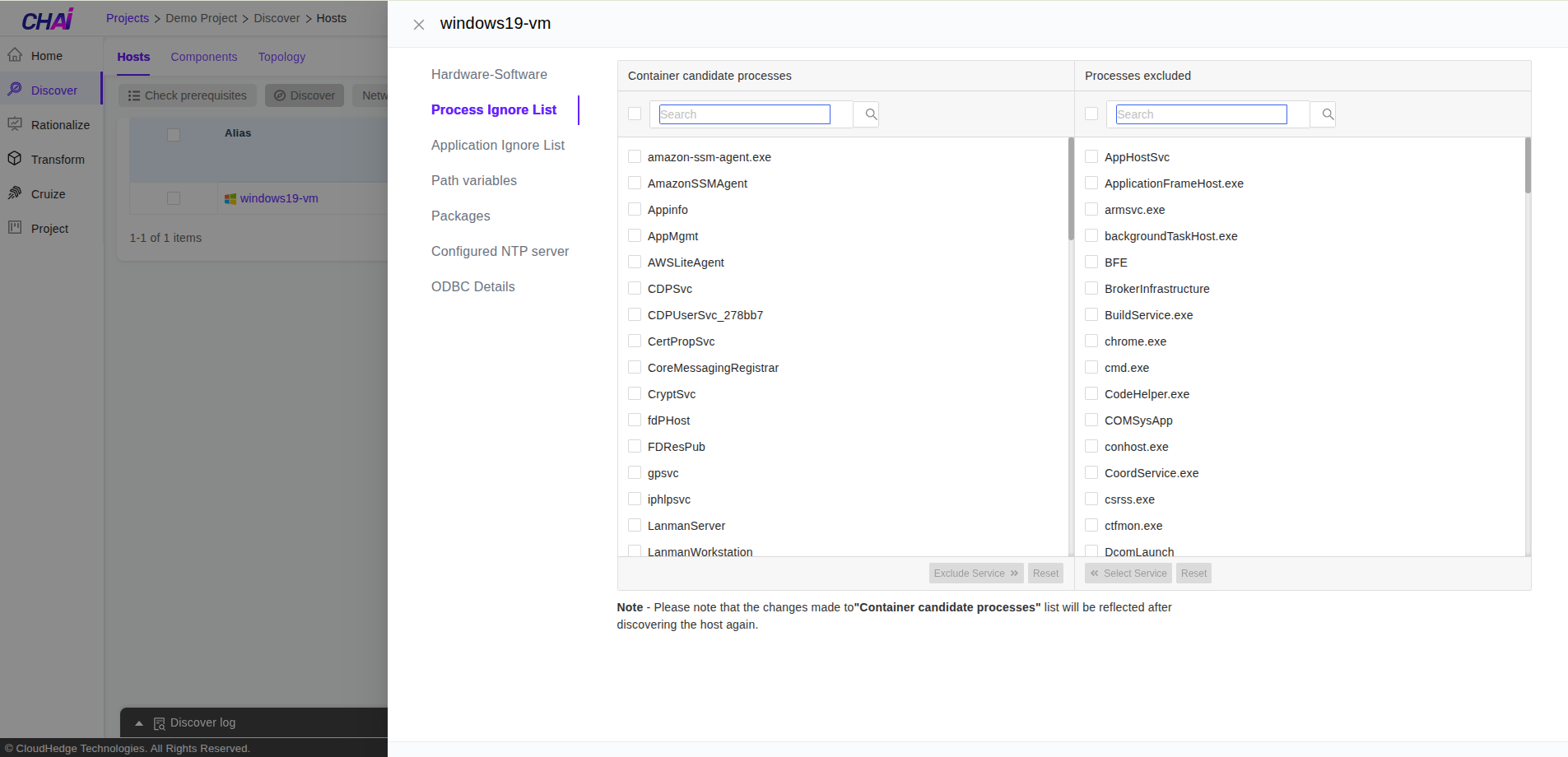
Process Ignore List
After clicking on the "Process Ignore list" tab as shown in the image below, ignore list will be displayed which could be updated based on list of processes detected from host. These processes will be ignored while performing discovery on host.
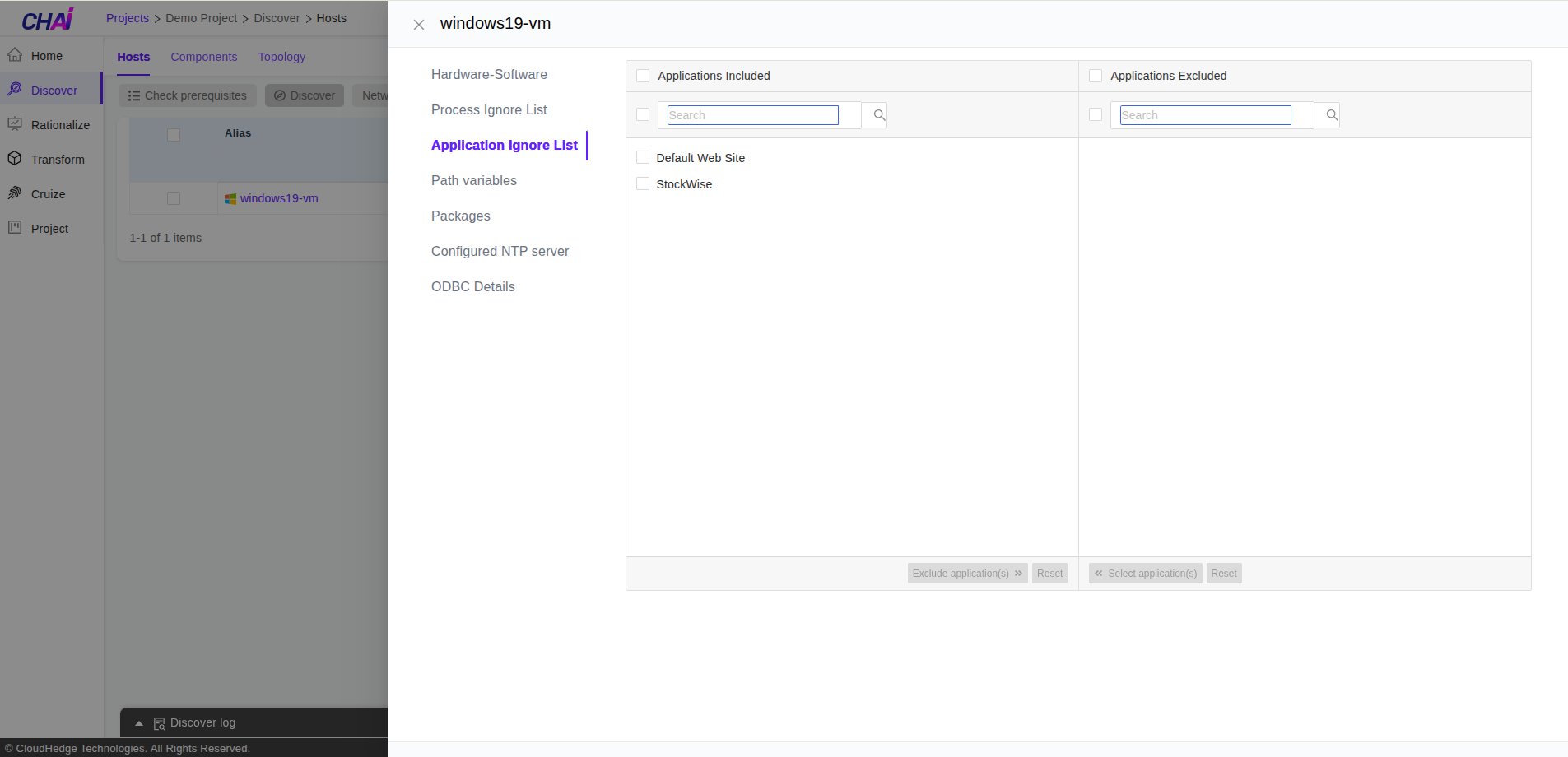
Application Ignore List
After clicking on the "Application Ignore list" tab as shown in the image below, the application ignore list will be displayed which could be updated based on list of applications detected from host. These application(s) will be ignored while performing discovery on host.
Path Variables
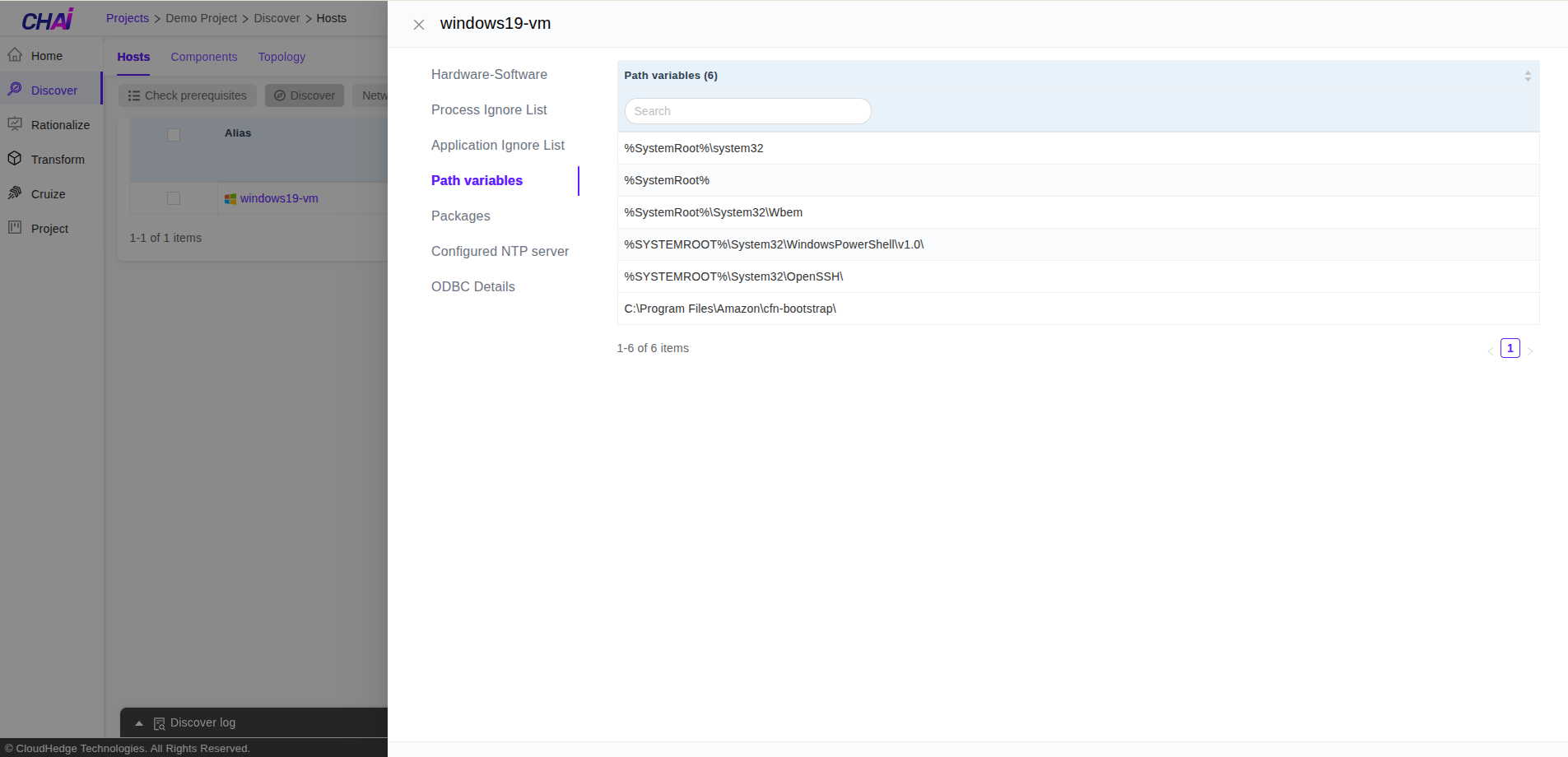
After clicking on the "Path Variables" tab as shown in the image below, path variables configured on host will be displayed on this screen.
Packages
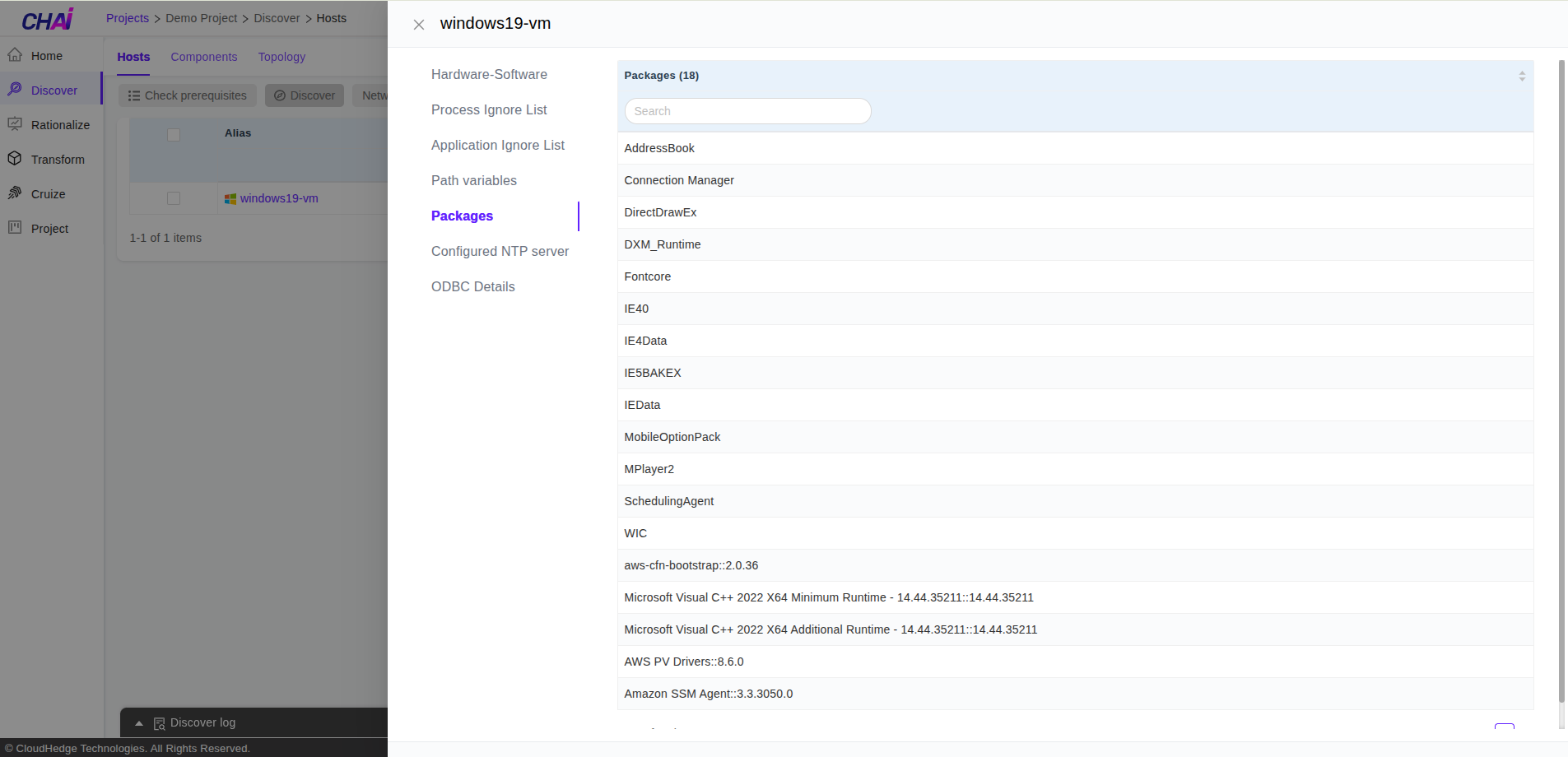
After clicking on the "Packages" tab as shown in the image below, list of packages which are installed on host will be displayed.
Configured NTP Servers
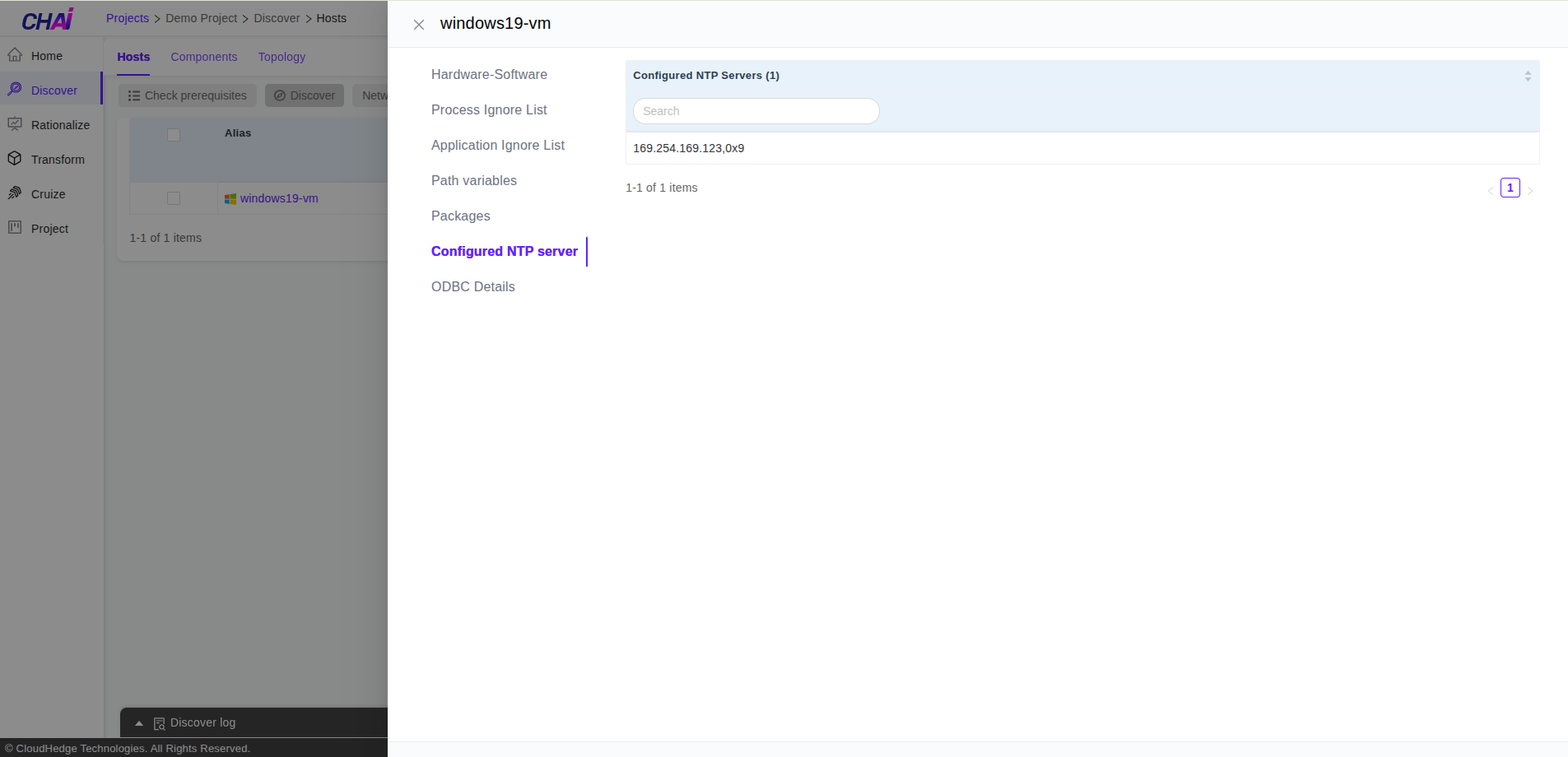
After clicking on the "Configured NTP Servers" tab as shown in the image below, if any NTP server(s) are configured then these will be displayed on this screen.
ODBC Details
After clicking on the "ODBC Details" tab as shown in the image below, if any ODBC drivers and ODBC DSNs are configured then these will be displayed on this screen.
Note: - ODBC drivers and ODBC DSN with type "System and User" will be discovered if discovery host has PowerShell version 4 and above - If ODBC DSN is of type "File" then it will not be discovered