AWS Graviton Assessment in DART or Portfolio Report
Prerequisites
Enable for New Projects
While creating a project, the AWS Graviton Readiness Assessment option is enabled by default.
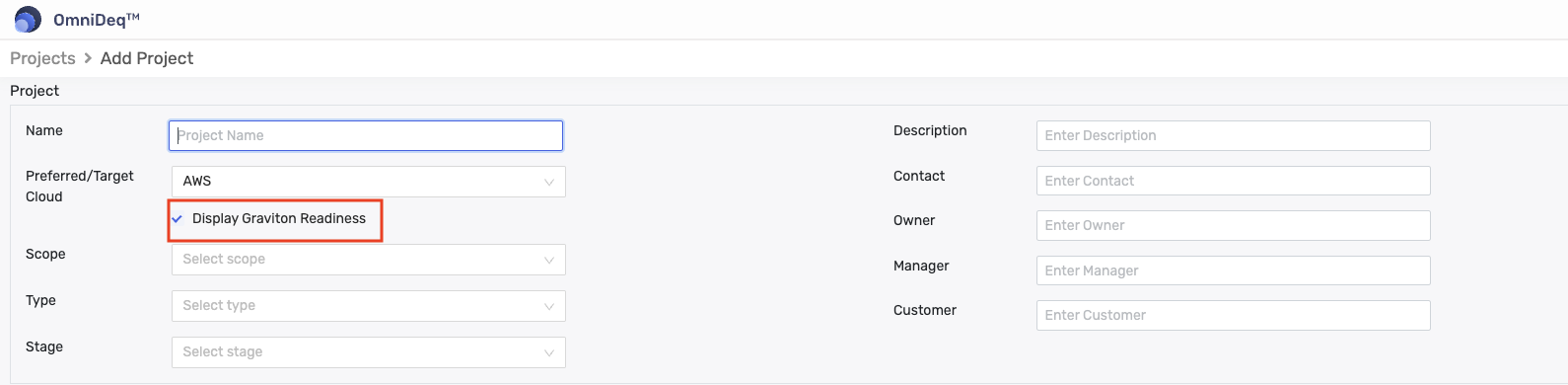
While creating a project, in case you want to opt out, you can deselect the checkbox. You can enable/disable this option at any point of time from the project settings page.
Enable for Existing Projects
To enable/disable viewing the Graviton Assessment in the DART page of a project:
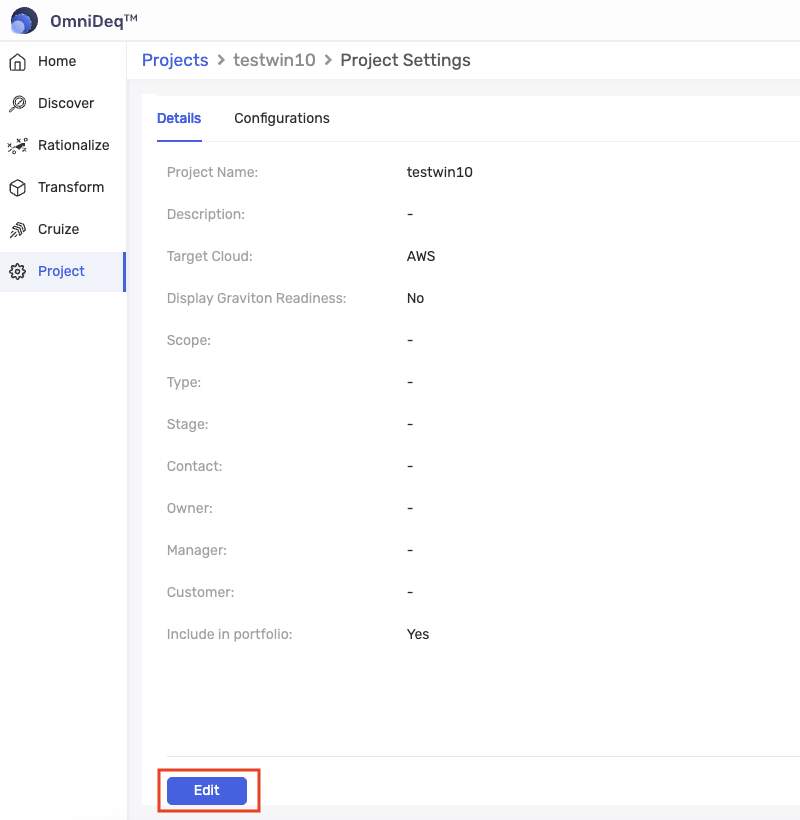
Step 1: For an existing project where it is not enabled, open the project and select the Project tab in the left-hand menu. Click Edit as shown below:
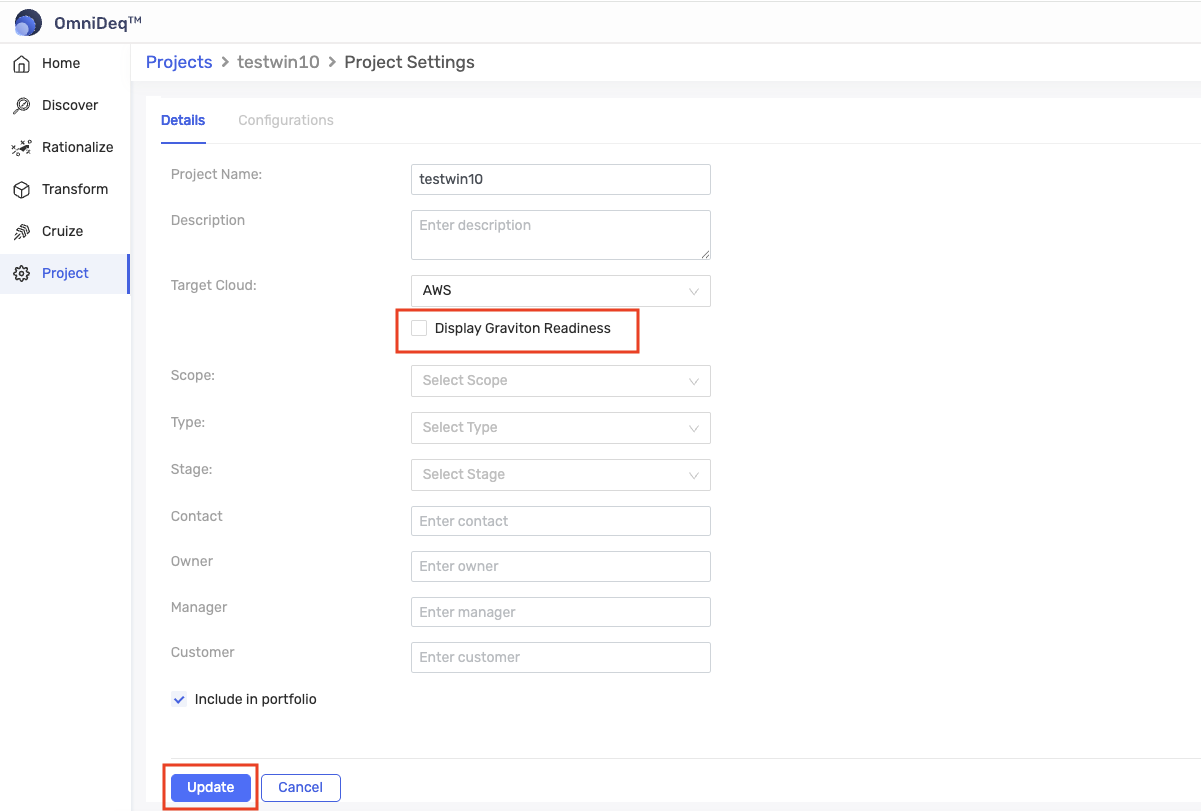
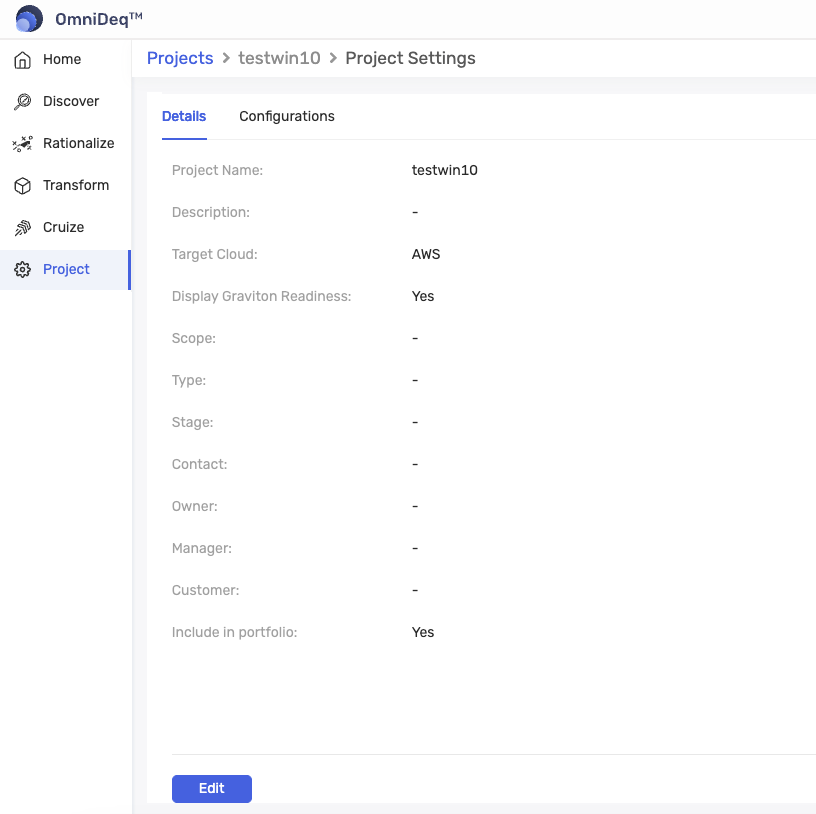
Step 2: Select AWS as the target cloud and enable the checkbox Display Graviton Readiness and click the Update button as shown in the image below:
Step 3: The updated project settings look as shown in the image below:
Disable Graviton Assessment
To disable, select AWS as the preferred target cloud and deselect the checkbox Display Graviton Readiness and click the Update button as shown in the image below:
Enable for Portfolio Report
To enable viewing the Graviton Assessment in the portfolio report, you will need to enable it.
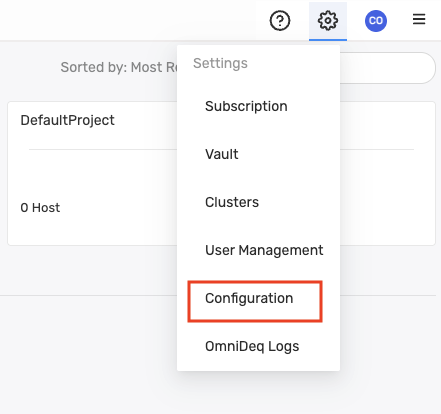
Step 1: Open the Configuration page under Settings, as shown in the image below:
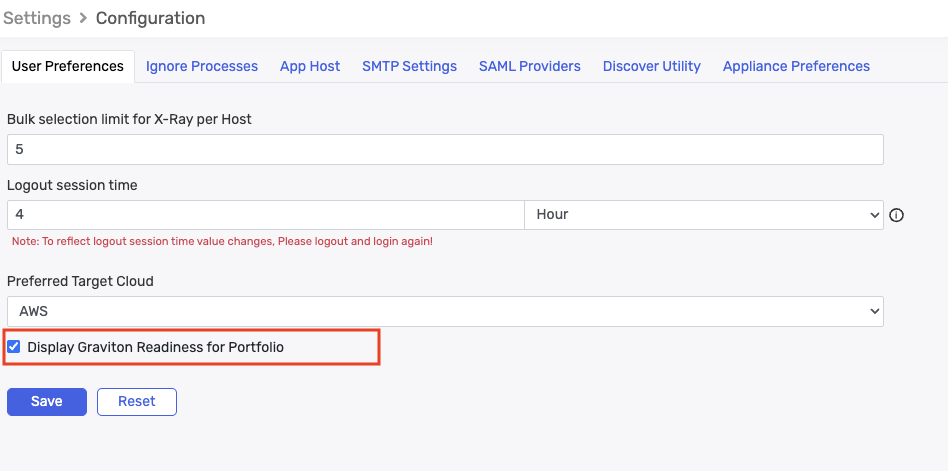
Step 2: In the Configuration page, select AWS as the preferred target cloud and enable the checkbox Display Graviton Readiness for Portfolio and click Save as shown in the image below:
Viewing the AWS Graviton Readiness Assessment
Access the Report
Open the DART report for the project or the portfolio report.
View Graviton Assessment Section
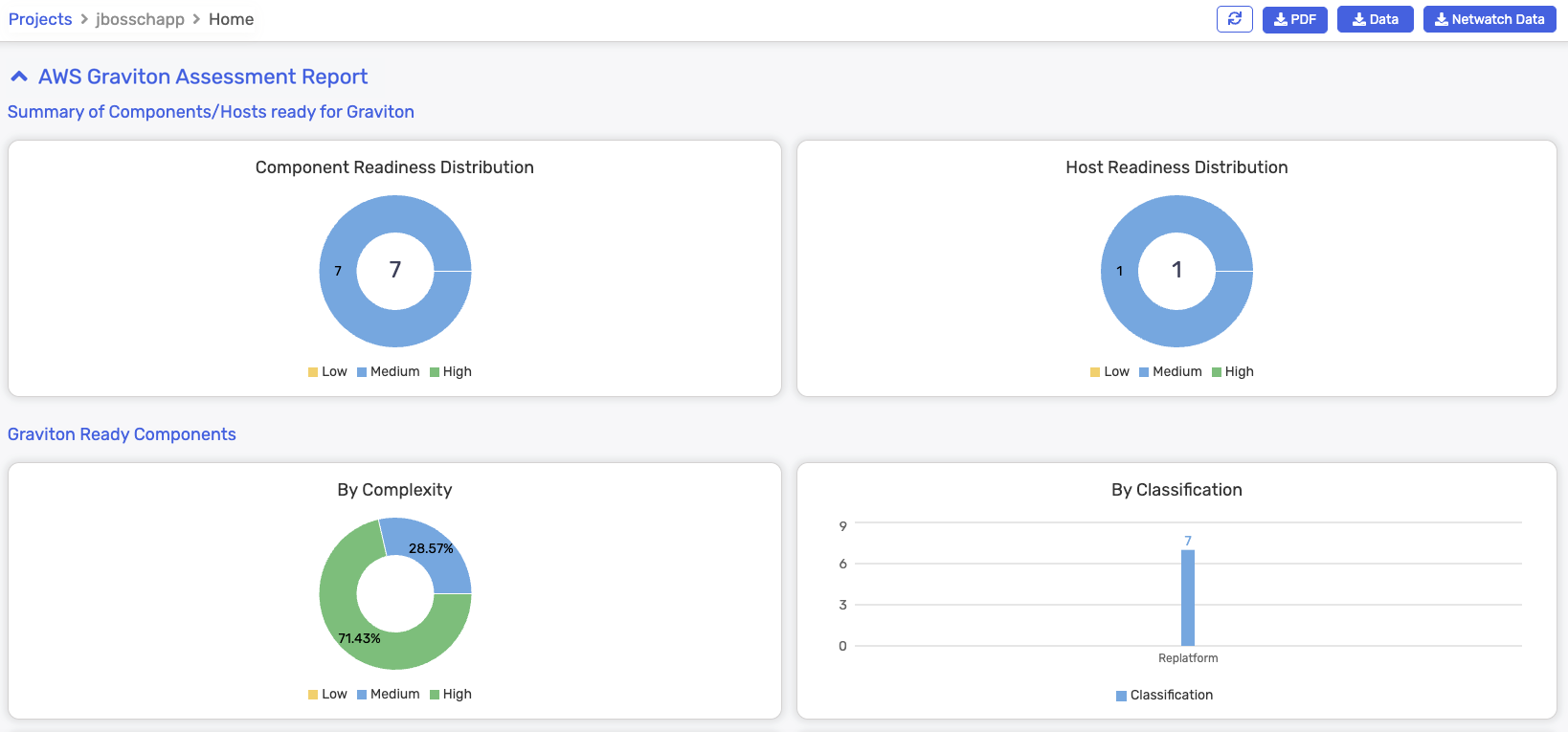
Scroll down to the AWS Graviton Assessment Report section as shown in the images below:
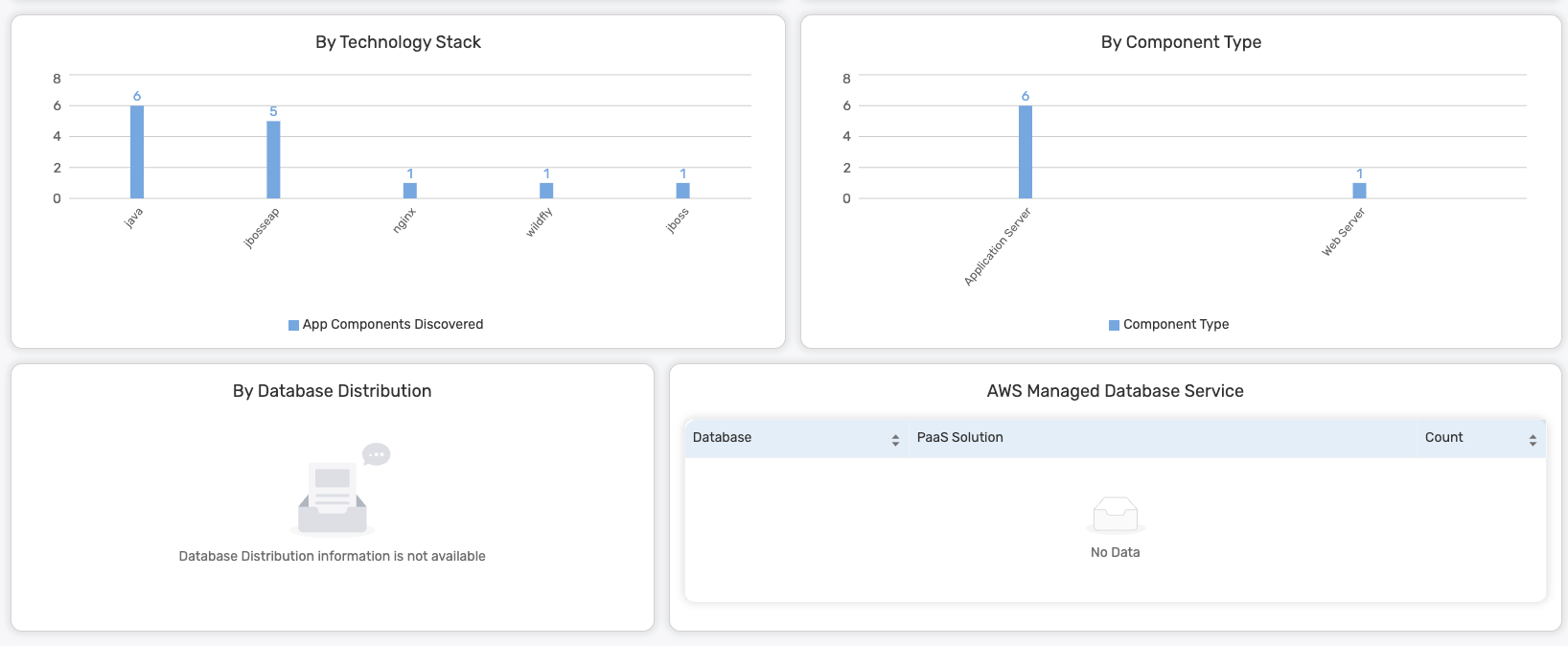
View Graviton Readiness in Tables
If you scroll down to the Applications, Components, and Hosts sections of the report, you will see the Graviton readiness as shown in the images below:
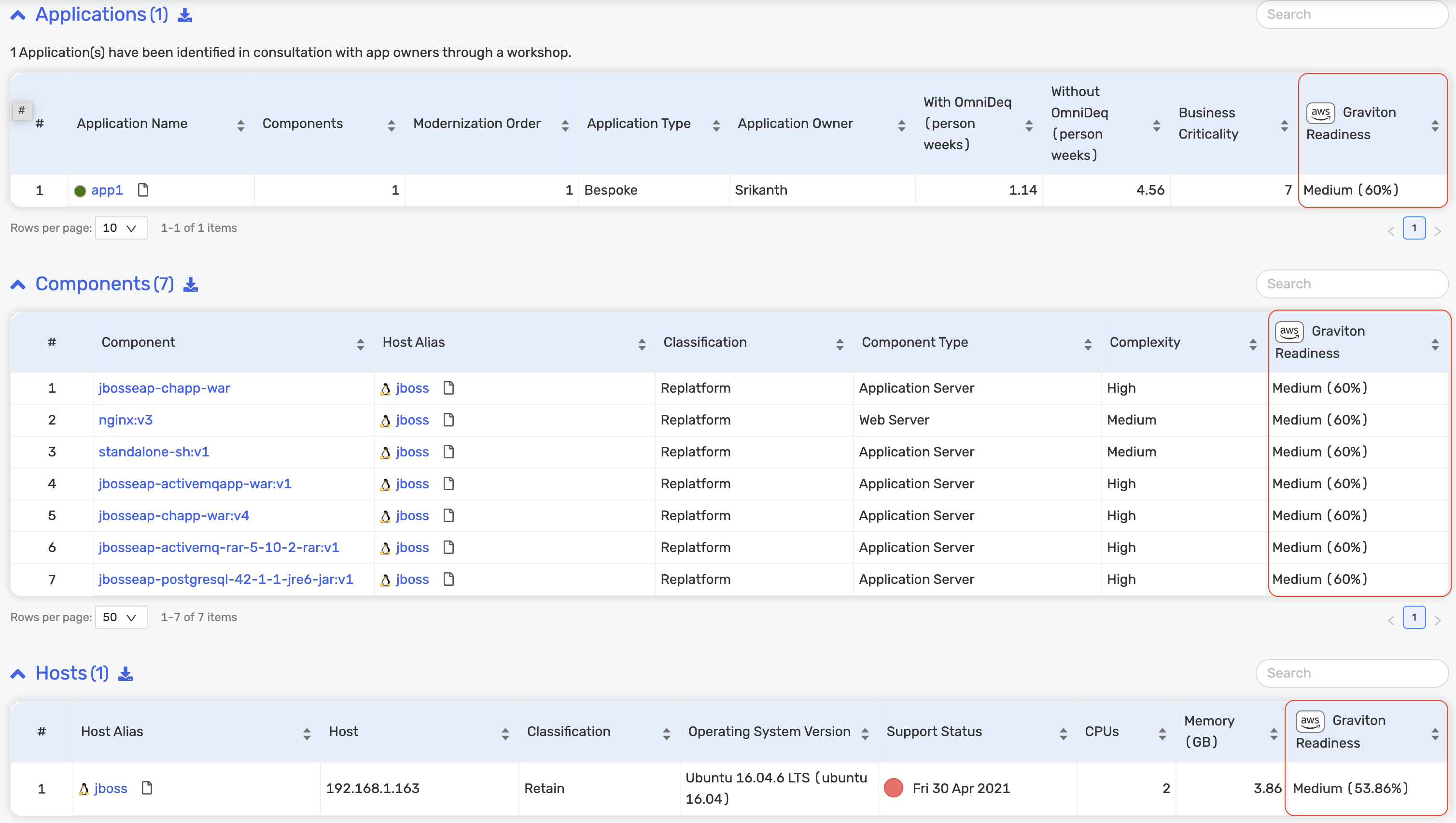
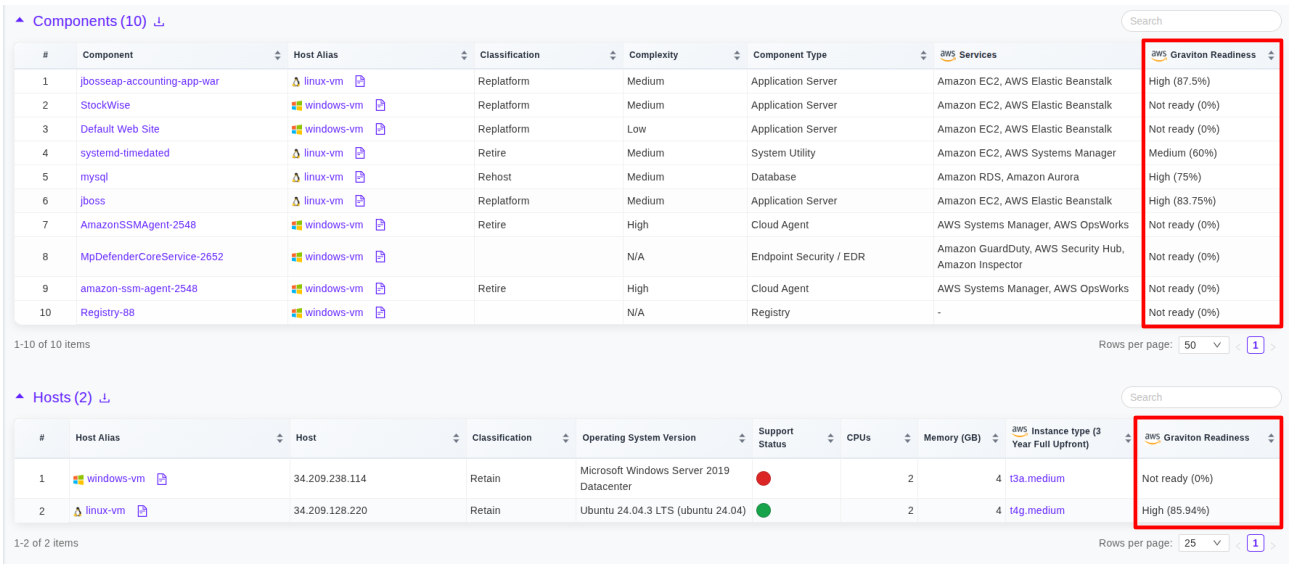
Download CSV Files
If you download the Components or Host CSV files, these will also contain the Graviton readiness data.
Update Graviton Readiness Assessment
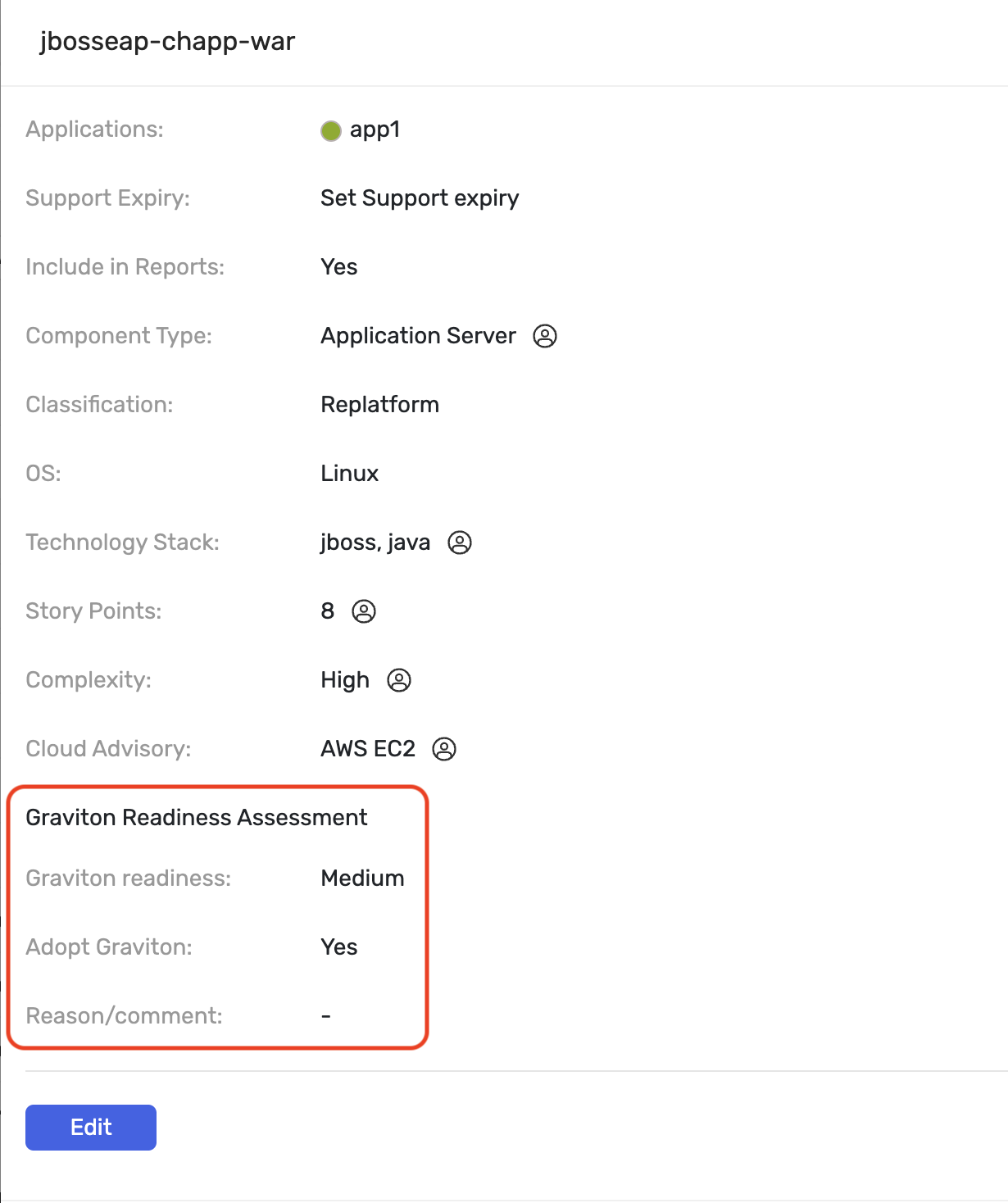
You can view/update the Graviton Readiness Assessment details of specific components from the Rationalize page.
Step 1: Navigate to the Rationalize page of the project, click the Components tab, and click on any component as shown below:
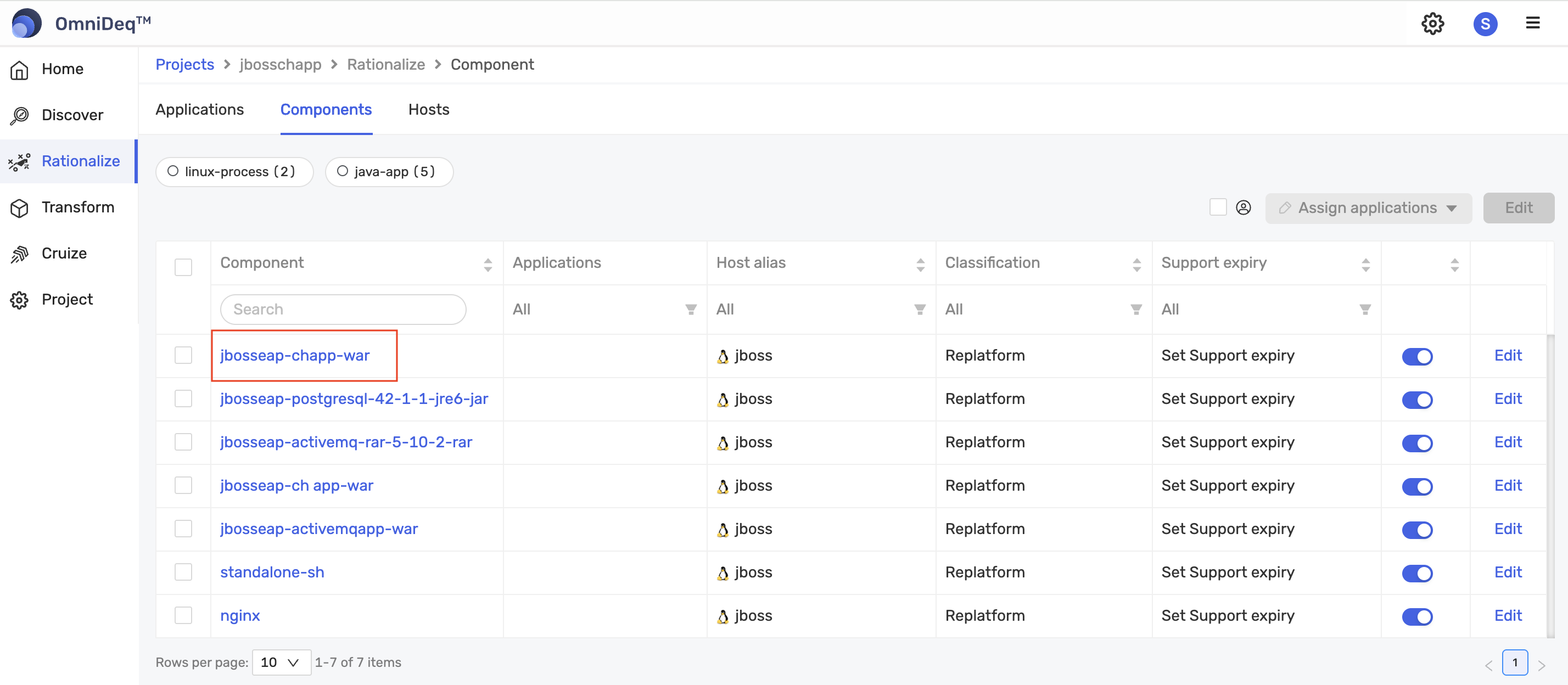
Step 2: Scroll down a bit to view the Graviton Readiness Assessment. Click the Edit button to make the changes. Once changes are done, click the Update button to save the changes.