Subscription Management
What is a Subscription?
A subscription is an official permission for the use of CHAI™ features i.e. Discovery, Transform, Cruize, CloudLease & Deploy docker on a host. Thus without the subscription you will not be able to use the said features effectively. However you will be able to define vaults, projects, hosts and check connectivity with the host without a subscription.
Before You Start
Keywords to Understand
-
Subscription:
- Overall package for all features such as (discover, transform, cruize etc)
- You can have multiple subscriptions
- A subscription consists of multiple benefits for different features
- Example: You have one subscription with ID: 12B4567 which holds 10 benefits of discover, 5 benefits of transform
-
Benefits:
- We can say number of tokens per feature in a subscription
- Example: You have 10 benefits for feature Discover in a subscription with ID: 12B4567
How to Obtain a Subscription?
Please contact sales@cloudhedge.io for procuring a subscription. The subscription is available for one or many features. You can procure two types of subscriptions:
-
Shared: A shared subscription is shared between all users of the deployment (SaaS or Appliance).
-
User: A user subscription is restricted to a specific user of the deployment (SaaS or Appliance). It is not shared with any other user of the deployment (SaaS or Appliance).
Note: You can have a subscription or multiple subscriptions (Maximum 999) as well for both deployment (SaaS or Appliance).
Active / Inactive Subscription
-
The first subscription that you upload is active, after that all the subscriptions that you add will be inactive initially
-
You can activate any number of subscription but one at a time
-
Activation process for any subscription is irreversible that is once the subscription is activated it cannot be deactivated
-
In case of shared subscription, only Admin has a right to activate the subscription
-
In case of user subscription, user has right to activate even if he/she doesn't have Admin rights
Go to Subscription Management
-
You will receive the subscription file (*.lic) from CloudHedge Sales team. Please keep it handy
-
Login to your CHAI™ Account (SaaS/Appliance)
-
Click on "Settings" menu to get drop down options, and select Subscription submenu
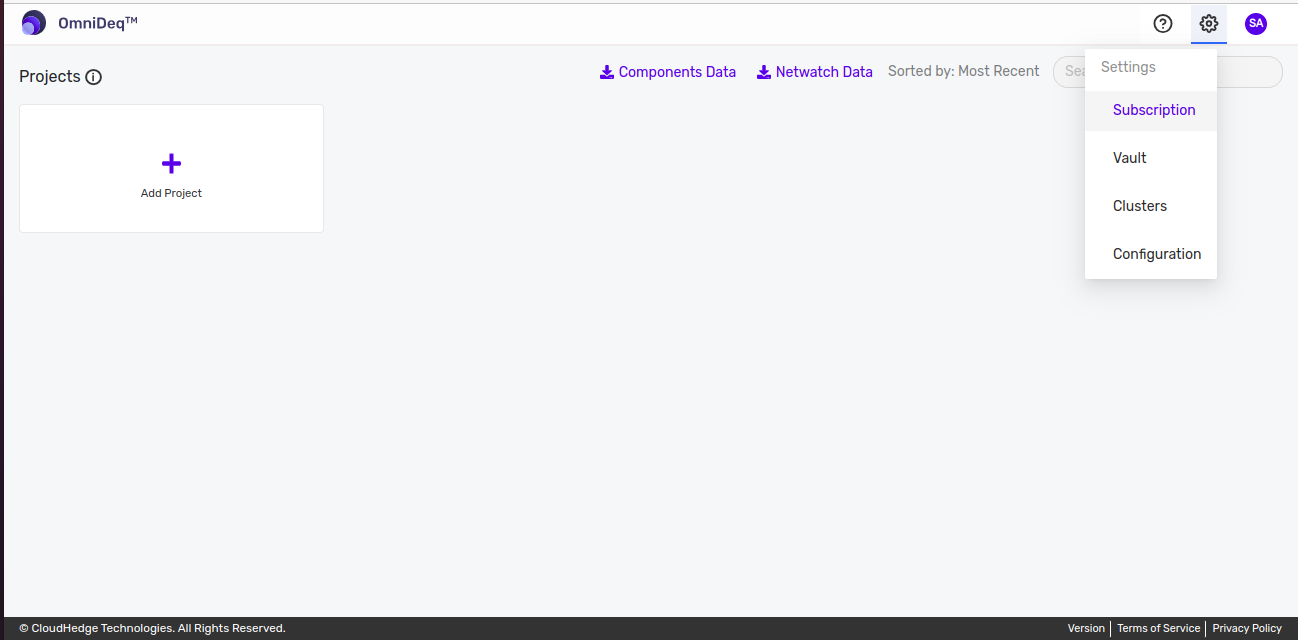
- Once you select subscription submenu you will land into the "Subscription Management" page. This page helps you manage all your subscription activities
Subscription Management Overview
Once you land on Subscription management page, you can see following four tabs:
-
- At this tab you can see the detailed information of your Active, Inactive and Expired subscription(s) respectively
-
- You can view detailed usage of:
- Overall total usage (includes all active subscription(s))
- Usage per active subscription
- You can view detailed usage of:
-
- All subscription activities such as addition, release, activation, usage etc. can be viewed in this section
-
- You can view all previously released subscription(s) under this tab
Add Subscription
Step 1: Click Add Subscription Button
To add a new subscription, click on "Add Subscription" button.
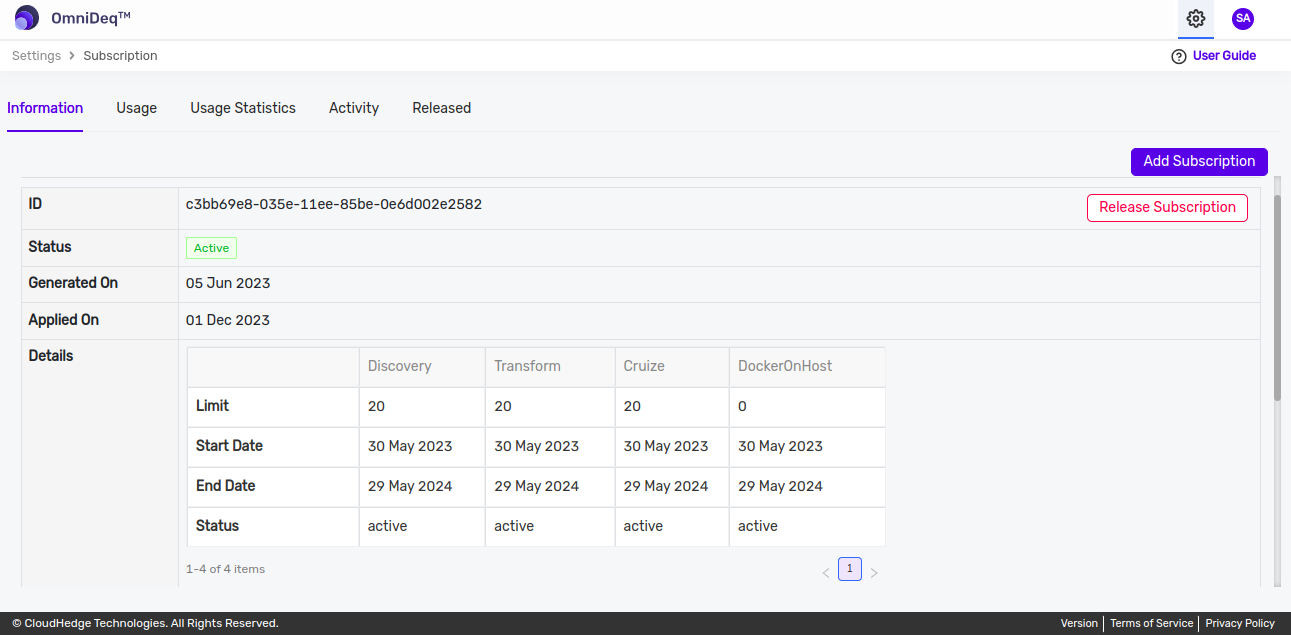
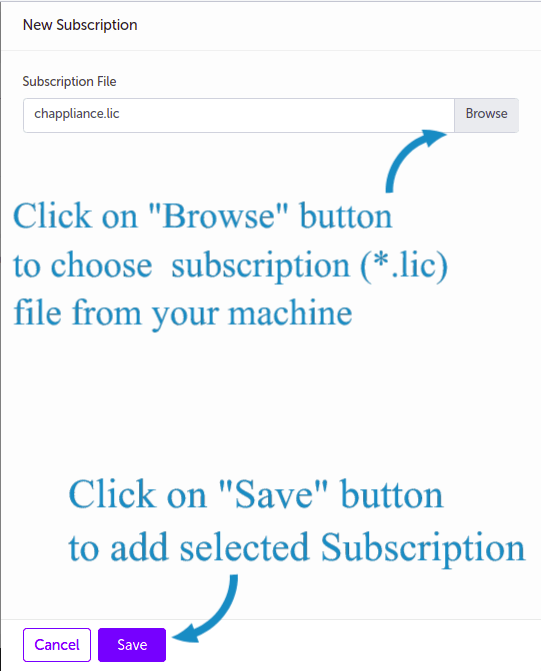
Step 2: Browse and Select Subscription File
After clicking on "Add Subscription" button, you will get following screen. Browse subscription file (.lic) from local file system and select. Click on "Save*" button.
Step 3: View Added Subscription
Once you save the subscription successfully, you will land on subscription Management page. If you don't have previous active subscription, your subscription will be in active section else appear in inactive section.
Here you will get the detailed information about the procured subscription as: - Subscription id - Status - Subscription creation date at CloudHedge - Subscription addition date from UI - Issue Date for each feature - Expiry Date for each feature
Subscription Information
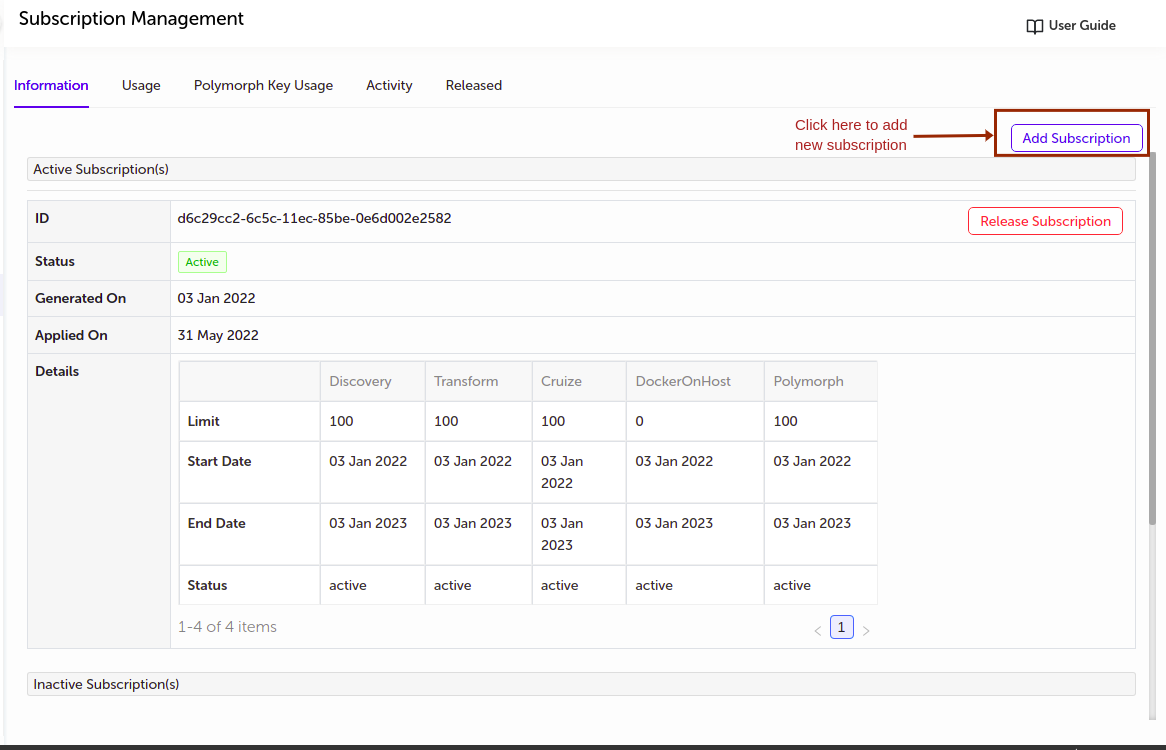
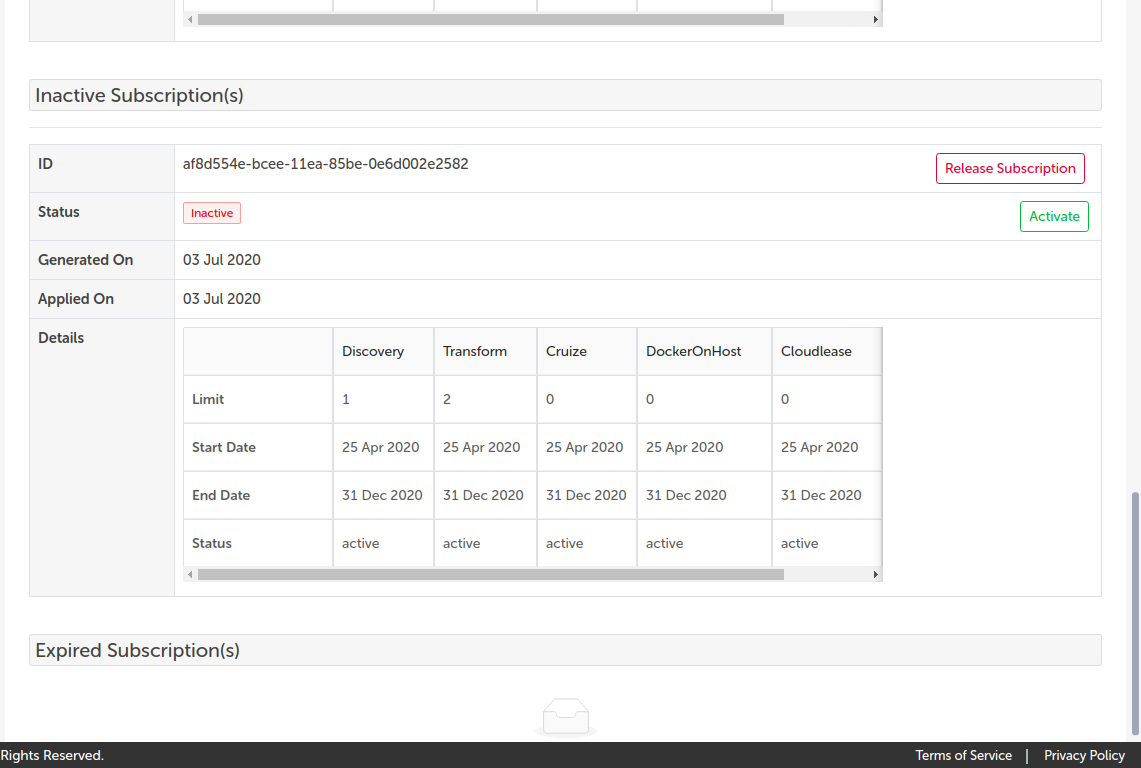
Note: - In case of shared subscription the button will be visible to Admin only - If you try to add the same subscription file while it has already been added successfully, the system will not allow you to add it again. It will throw an error "This subscription is already been used" - Each feature is active only between issue date and expiry date
Activate Subscription
On each inactive subscription, activate button will appear with the help of which you can activate respective subscription. In case of shared subscription Activate button will be visible for Admin only.
- Once you click on activate button, one pop-up will appear to confirm if you really want to activate the subscription or not (As this process is irreversible) as shown below:
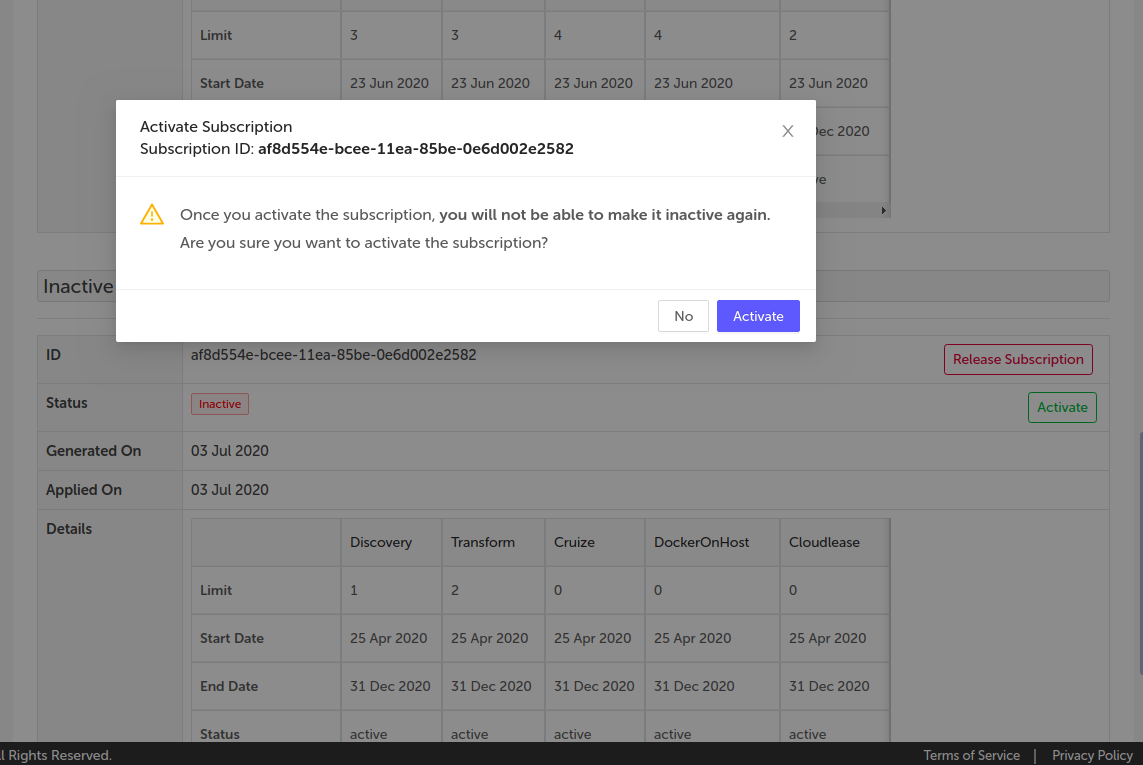
- Once you confirm, subscription will be activated and goes in active section
View Subscription Usage
As you start using the various features of CHAI™ it will consume the added subscription. To view the current subscription usage, click on "Usage" tab.
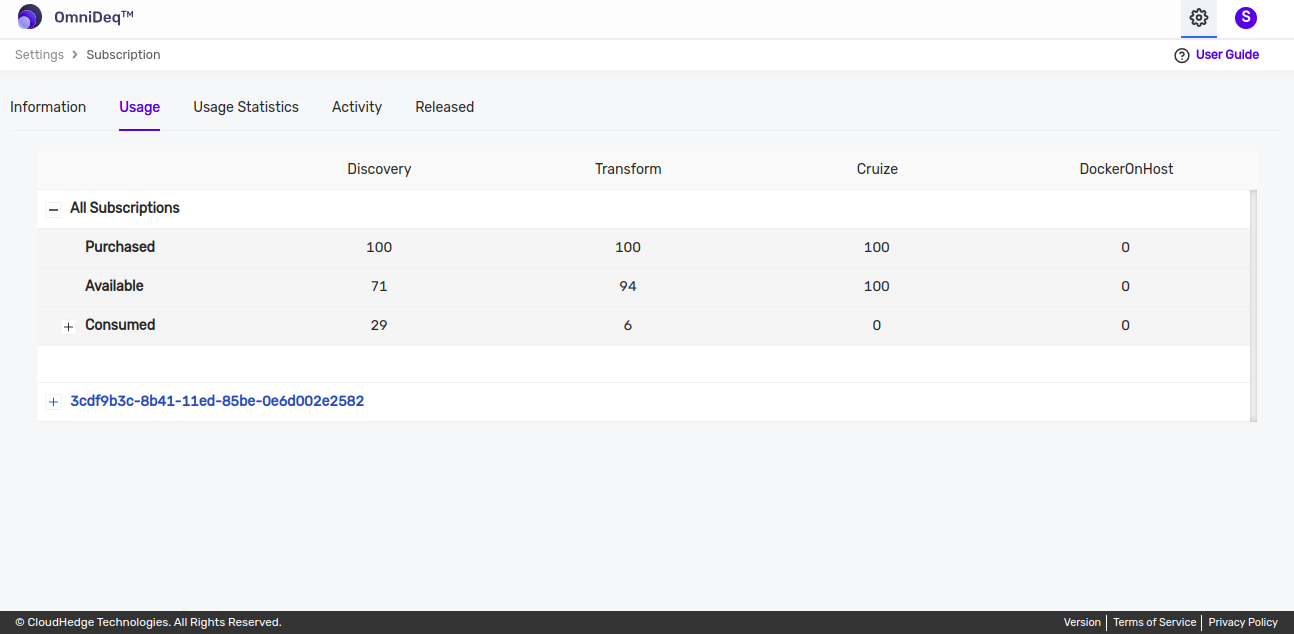
On this page, you can view overall usage of active subscription(s). Table will gives following information:
- Purchased subscription benefits
- Consumed subscription benefits
- You can view overall consumption (Example: Let say you have 2 active subscriptions having total Discovery benefits 10 in which 5 are used)
- You can view user based consumption (Example: Let say you have 2 active subscriptions having total Discovery benefits 10 in which 5 are used further in that 3 are used by person A and 2 are used by person B)
- Available subscription benefits
Note: If you want to view the subscription usage per user then click on "+" before consumed row.
First table represents the global counts of all active subscription(s) followed by the tables for each active subscription.
View Subscription Activity
You can view activities for subscription such addition, activation, consumption etc in activities tab as shown below:
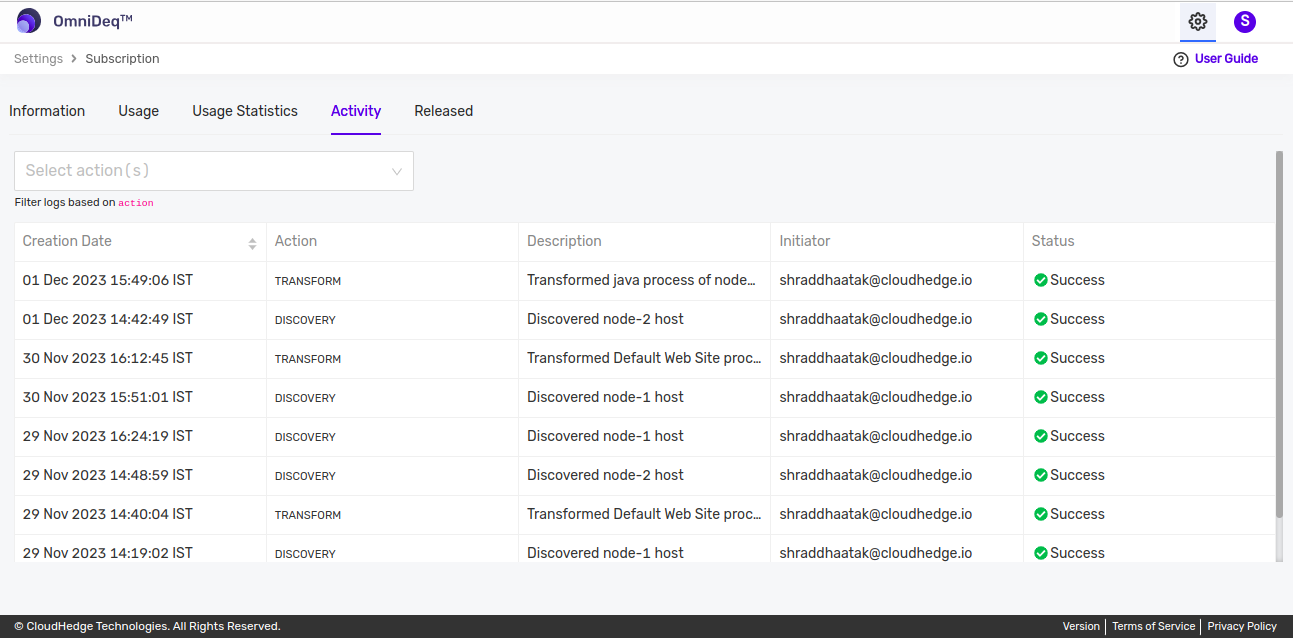
- You can sort activities in ascending or descending order of creation date
- Filter is provided to view activities based on desired actions only
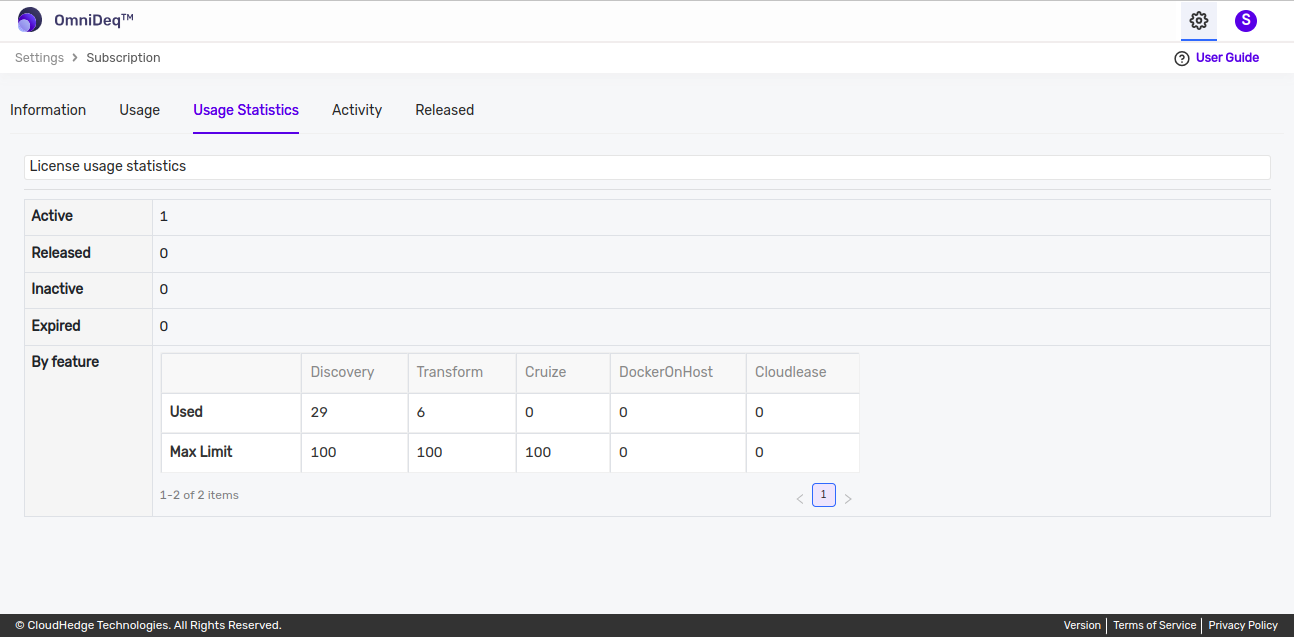
View Subscription Usage Statistics
You can view the usage statistics in the Usage Statistics tab:
Release Subscription
- CHAI™ provides the facility to release the unused subscriptions, if any
- Each active/inactive subscription has "Release Subscription" button to release the desired subscription
In order to release, click the "Release Subscription" button and then click on "OK" button on confirmation pop-up.
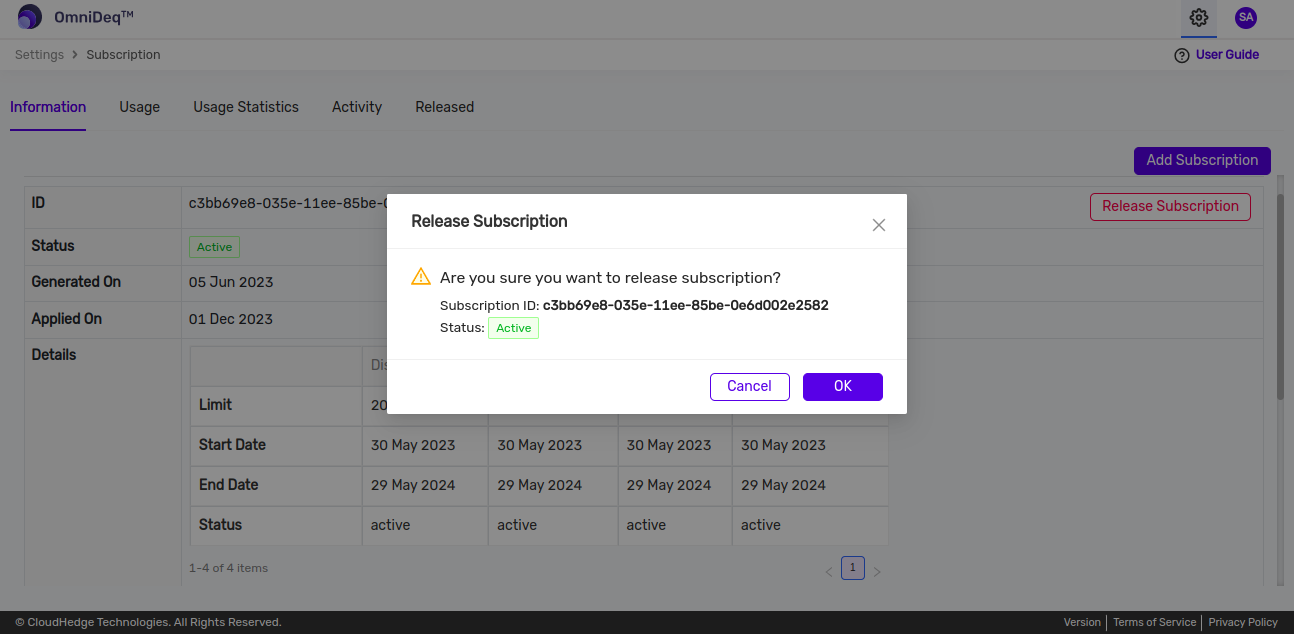
This will create the file called "subscription-id.lic". Please send this file back to CloudHedge sales team to get the benefits of release subscription.
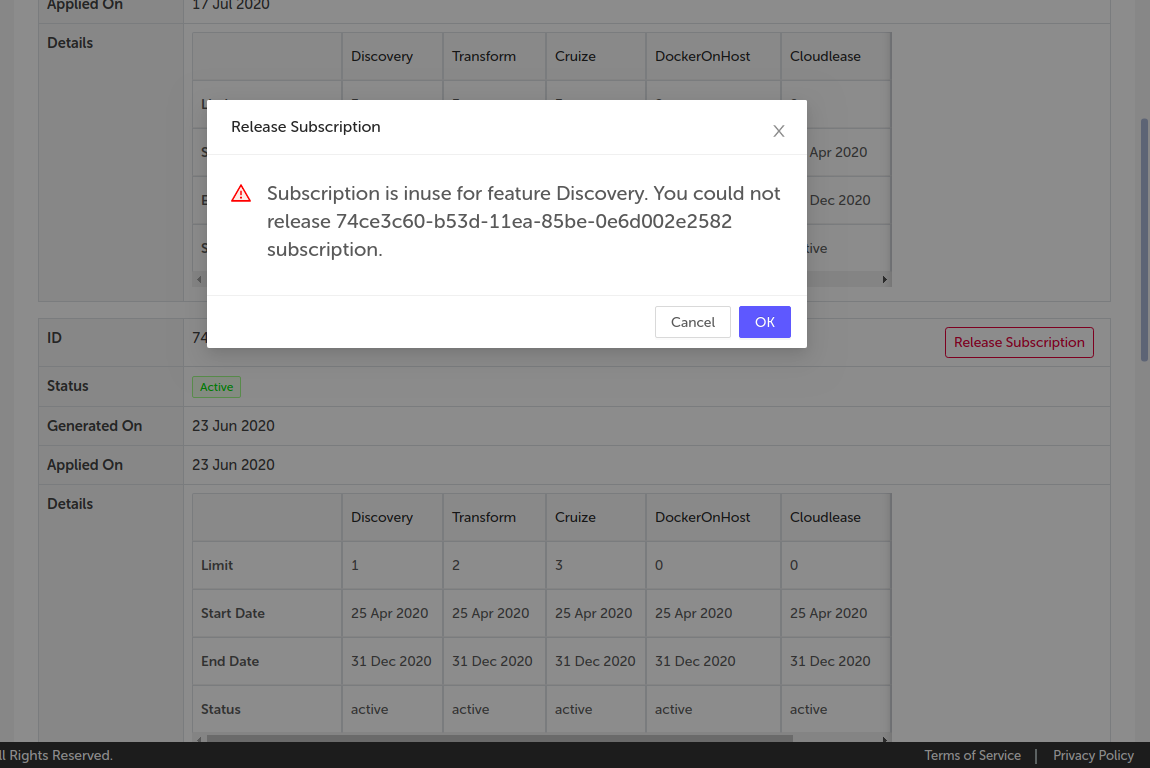
Note: - In case of shared subscription, only Admin can release subscription - Please do not misplace the "subscription-id.lic" file. It is generated only once. If you misplace the file then you will lose the release subscription benefits - You cannot add the released subscription as a new subscription. It is not allowed - If you click on the release button on the subscription which is currently in use (Example: you are releasing the subscription which is under use for current Discovery) then you cannot release respective subscription. You need to wait till the operation is complete - Only unused benefits can be released
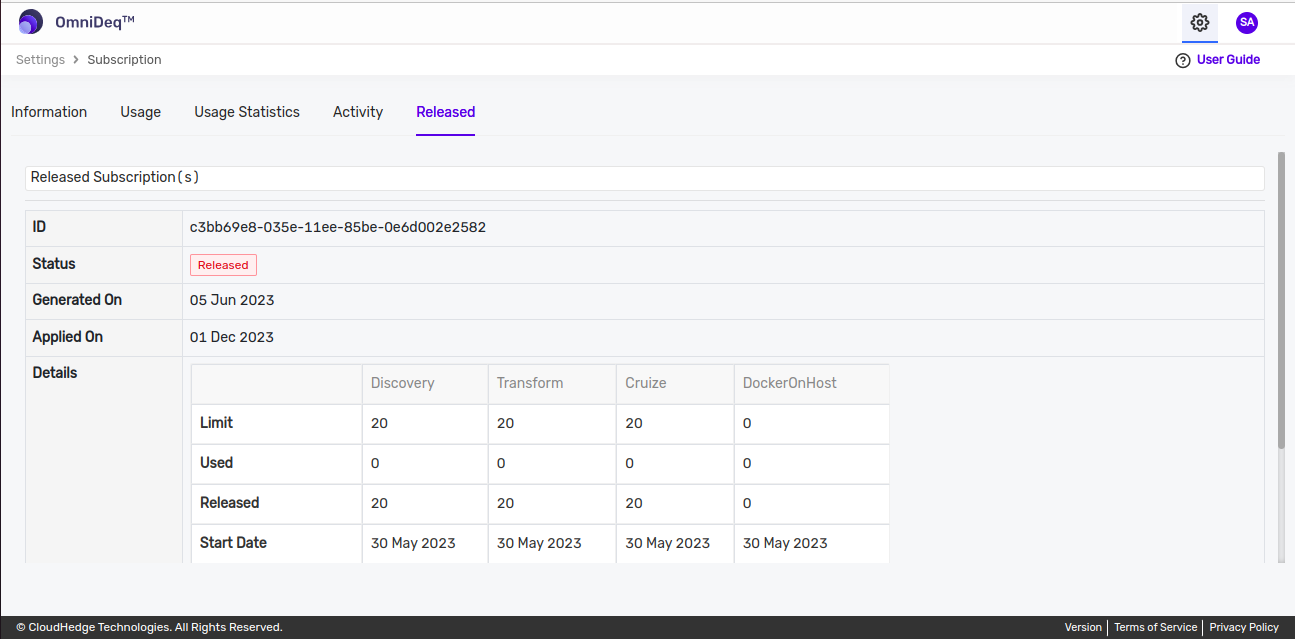
Released Subscription
You can view the released subscription(s) under "Released" tab.
View Expired Subscription(s)
You can view Expired subscription(s) at the bottom under the "Information" tab.
Note: You cannot release the subscription in chunks.