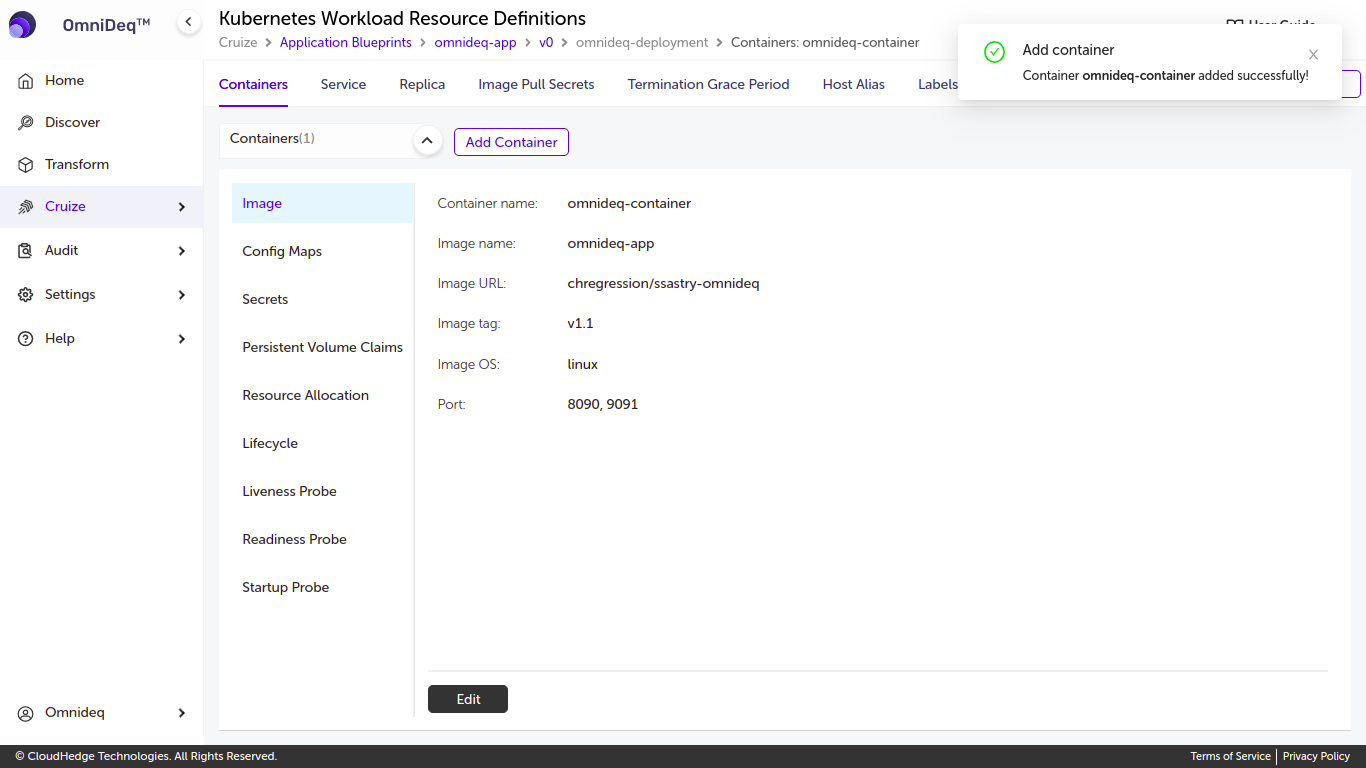
Container Image
Adding a Container
-
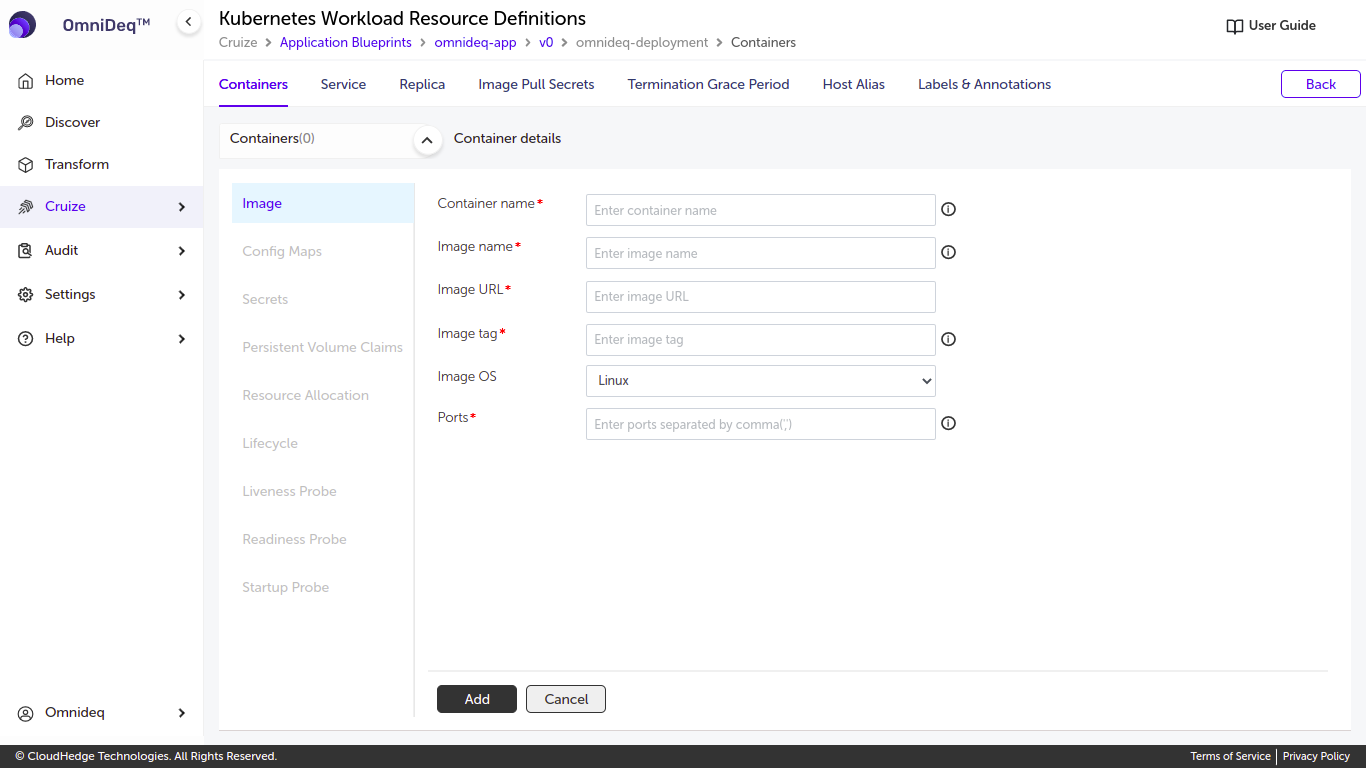
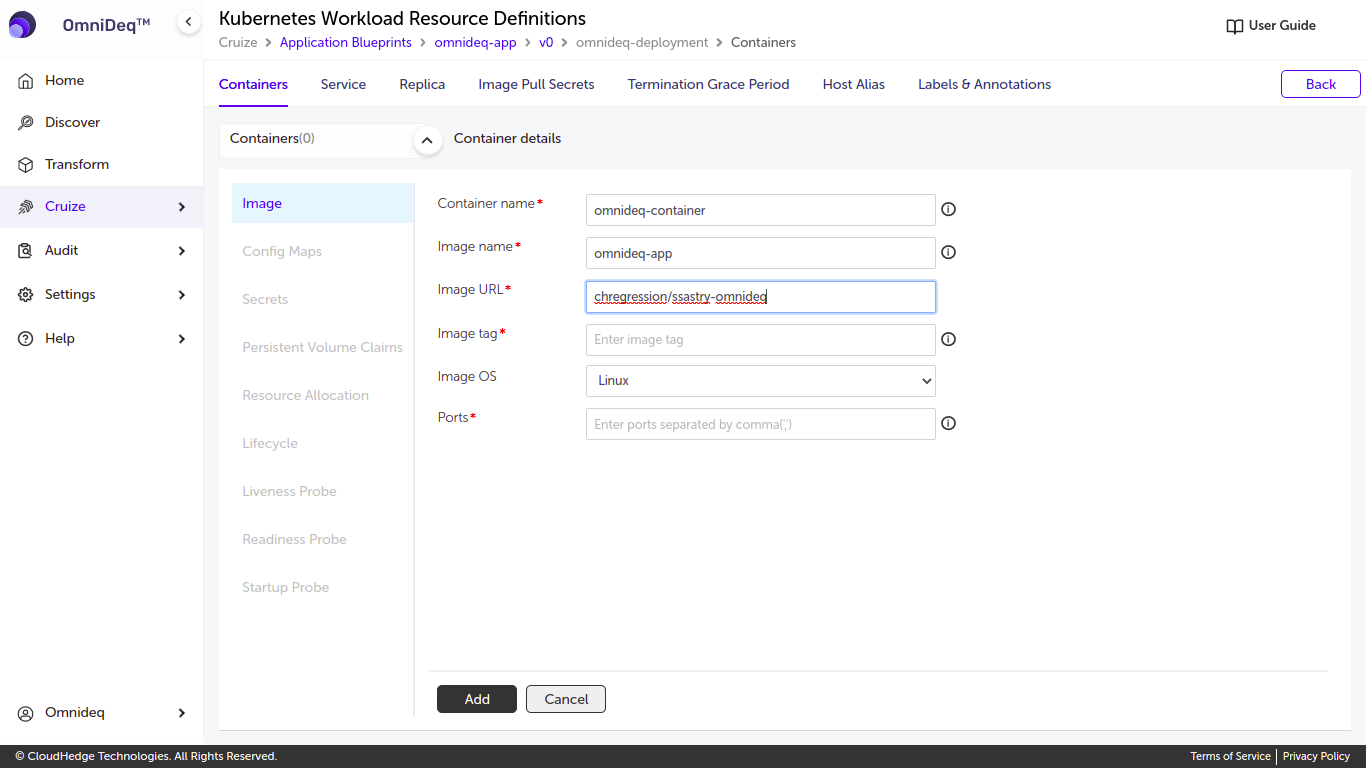
Click the Add Container button. After clicking, the following form will be displayed as shown in the image below.
-
Add a container by entering the following details:
Field Description Container name Enter the container name Image name Enter the image name Image URL Enter the image URL Image tag Enter the image tag Image OS (Linux/Windows) Select the image OS Ports Enter ports separated by comma (,)
Field Requirements
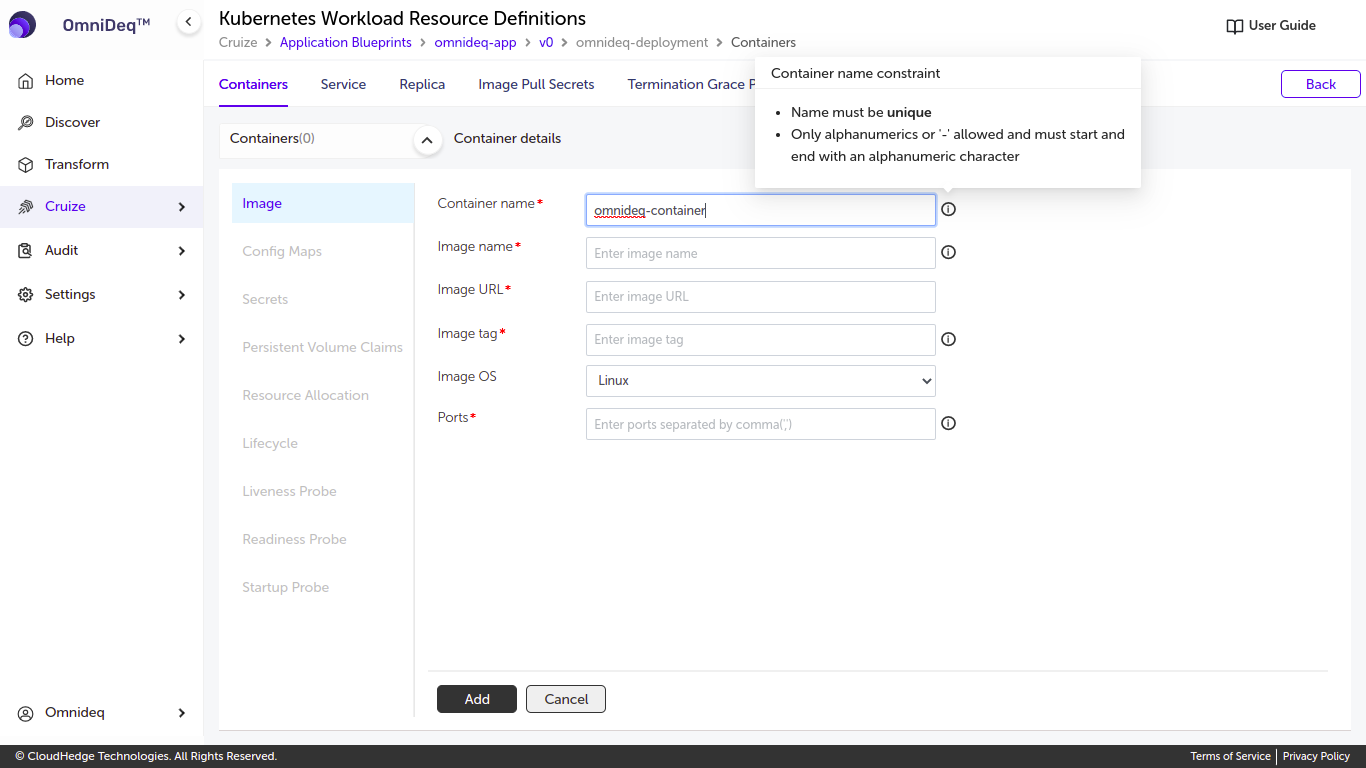
1. Container Name
Naming requirements: - Only lowercase alphanumeric characters or hyphens (-) are allowed - Must start and end with an alphanumeric character - Name must be unique
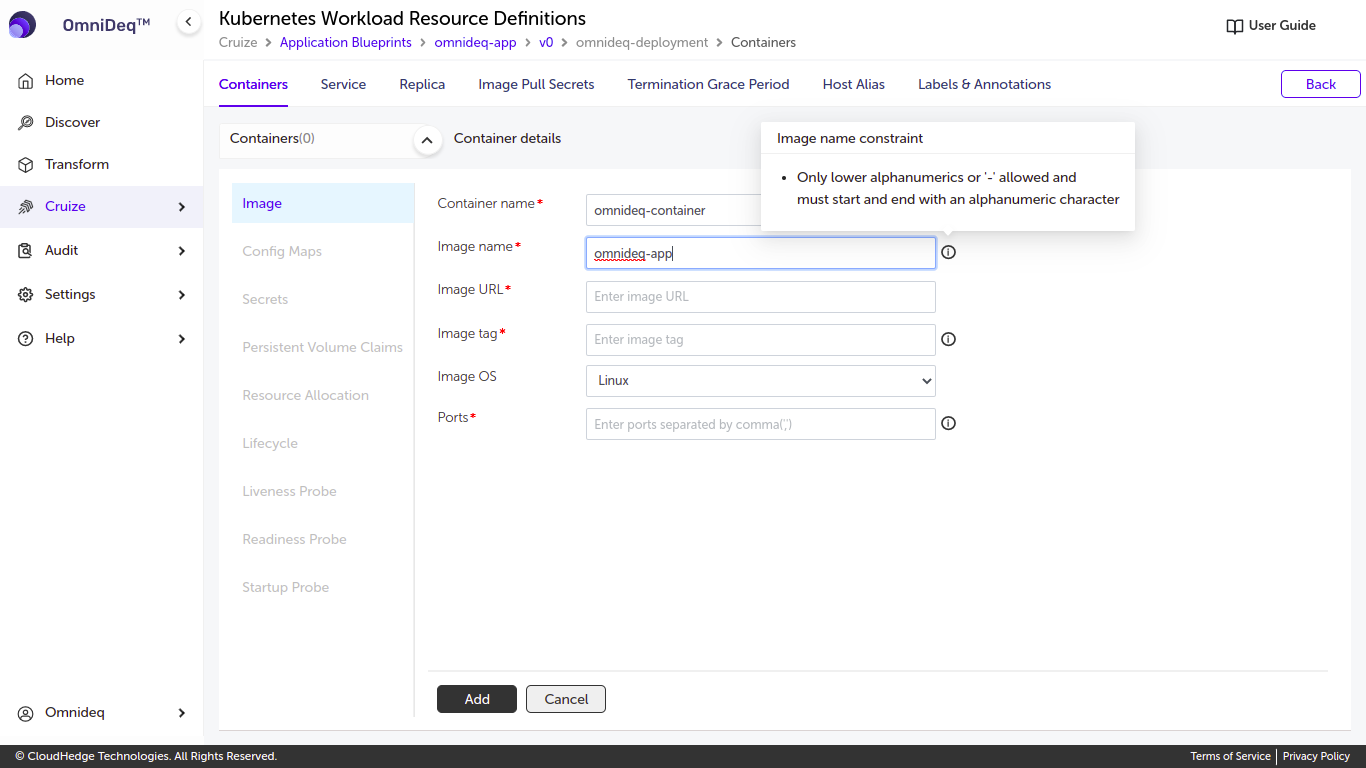
2. Image Name
Naming requirements: - Only lowercase alphanumeric characters or hyphens (-) are allowed - Must start and end with an alphanumeric character
3. Image URL
Enter a valid image URL.
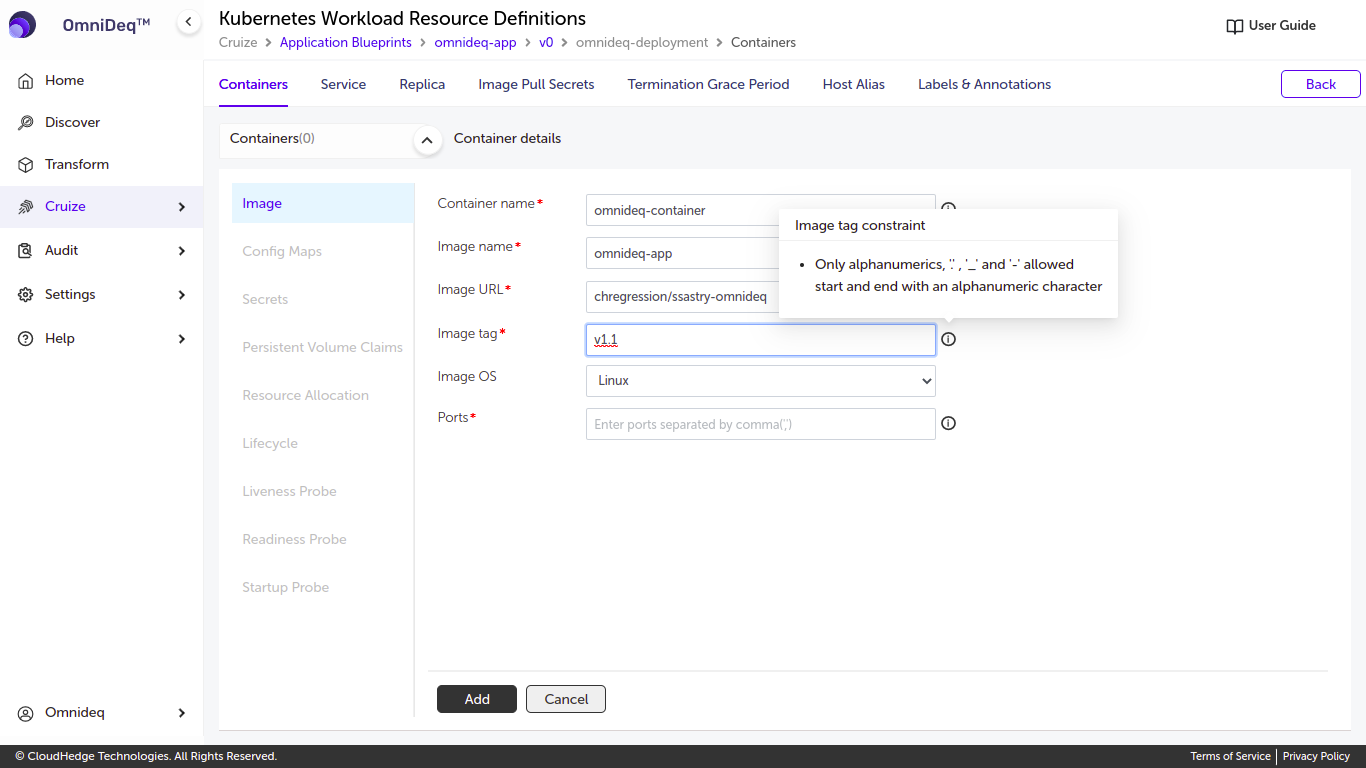
4. Image Tag
Tag requirements: - Only alphanumeric characters, periods (.), underscores (_), and hyphens (-) are allowed - Must start and end with an alphanumeric character
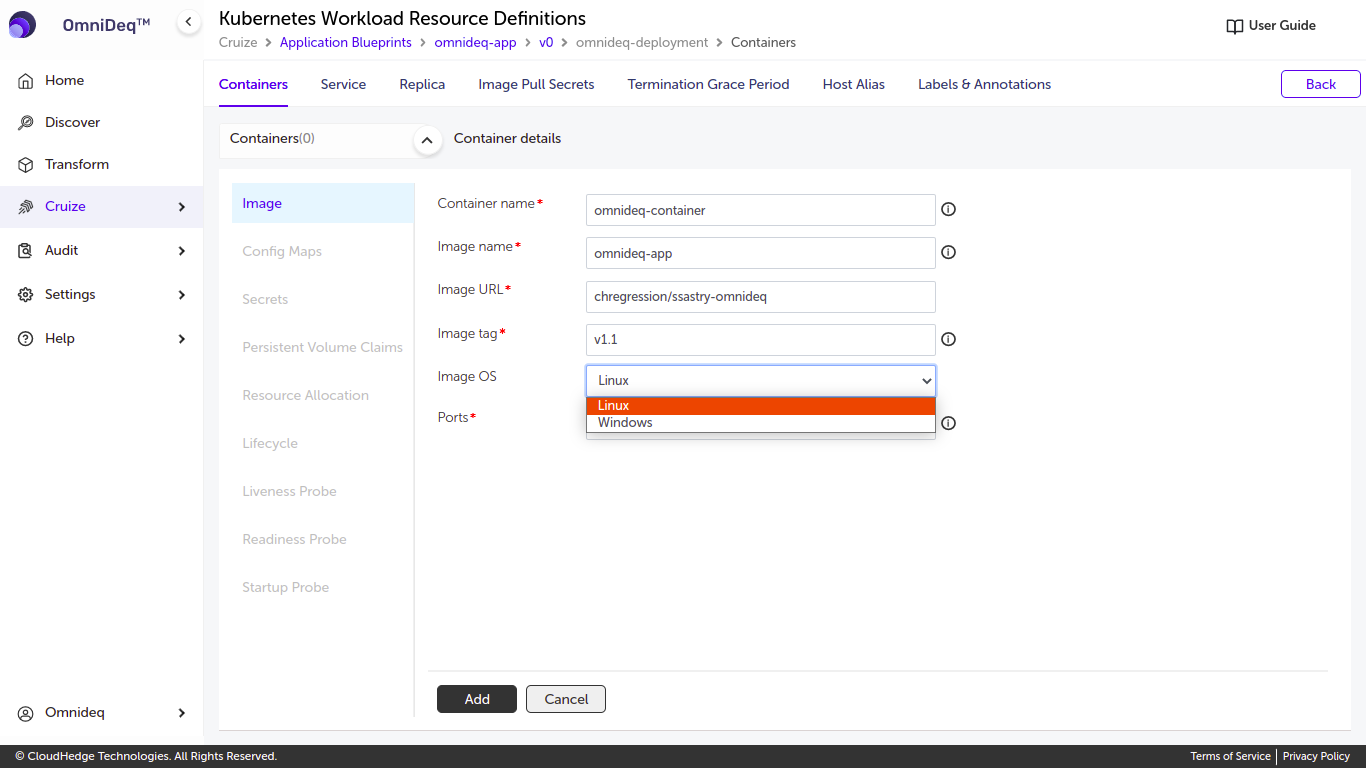
5. Image OS
Select the image OS (Linux / Windows).
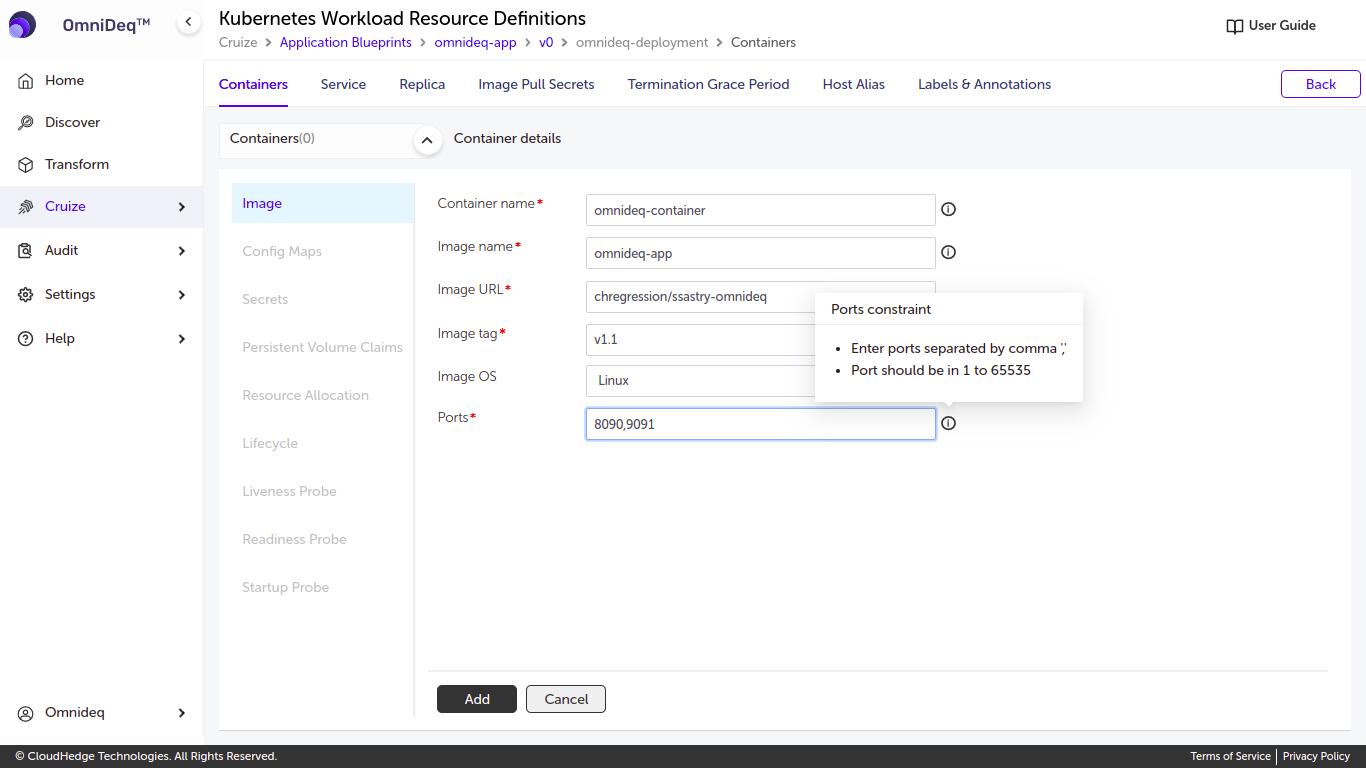
6. Ports
Port requirements: - Enter ports separated by comma (,) - Port should be in the range 1 to 65535
Save Container
-
Provide all details and click the Add button.